This video teaches you how to create a custom rotation that works perfectly. A custom rotation mainly occurs during the final weeks of a league or during tournaments with a specific format. In the case of a league, instead of following the default lane assignment, the league requires that teams are assigned on specific lanes and that they move to specific lanes on Game 2 and Game 3. Often, people think they must rely on the team numbers to set up the custom rotation, but that's not the case. This is the most common mistake, and it makes the custom rotation a complete mess.
If you go further down, you can watch a video.
Warning: What follows is used as training purposes only. The goal of this example is to make you understand the logic behind a custom lane rotation so you can apply to your own leagues and tournaments.
In this league, Week 33 is the final week. They bowl three games, each on a different pair against a different team. The lane rotation configured by the league secretary at home does not follow a default rotation in Lexer such as "left goes left / right goes right" or "move the right". Because of that, a custom lane rotation is needed. Ask the league secretary to hand you in his lane rotation so you can configure it in Lexer.
Let's pretend that this is the lane assignment and rotation that was given to you...

ASSIGNING TEAMS TO THEIR STARTING LANE
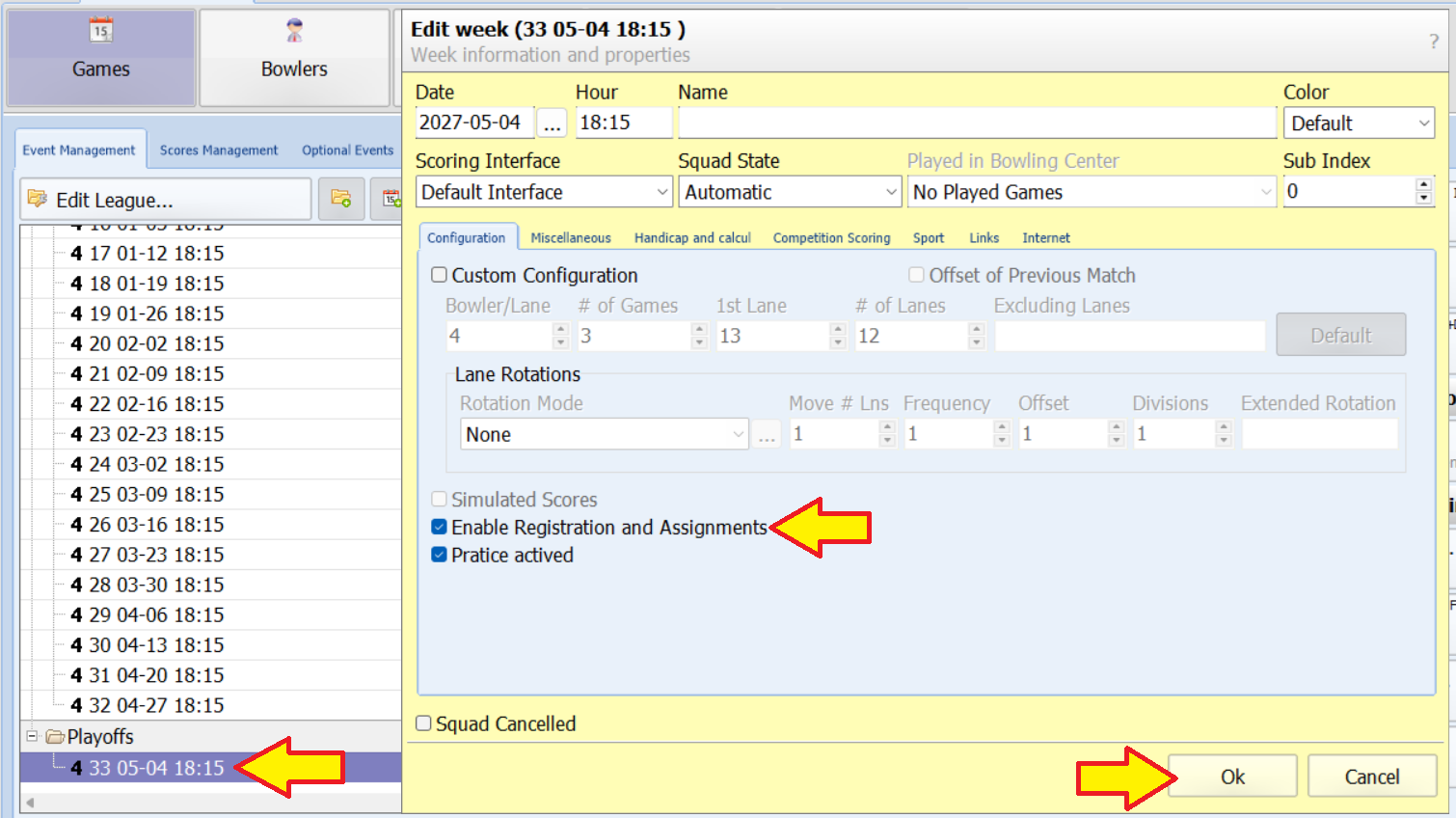
1) Double-click Week 33 > Click the option Enable Registration and Assignements > Click OK. This will allow you to assign the teams manually to their starting lane.
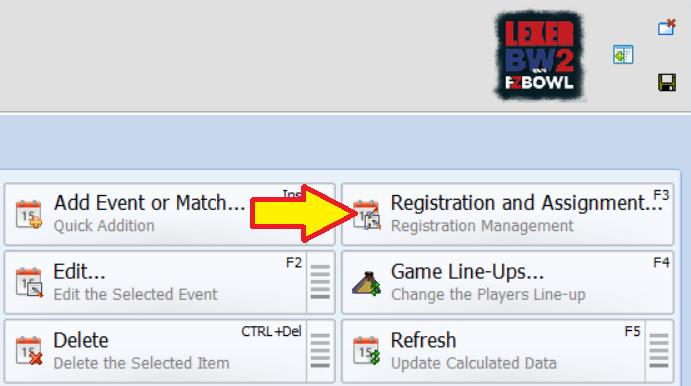
2) Click Registration and Assignements. On this screen, you see the default lane assignment that follows the default schedule.
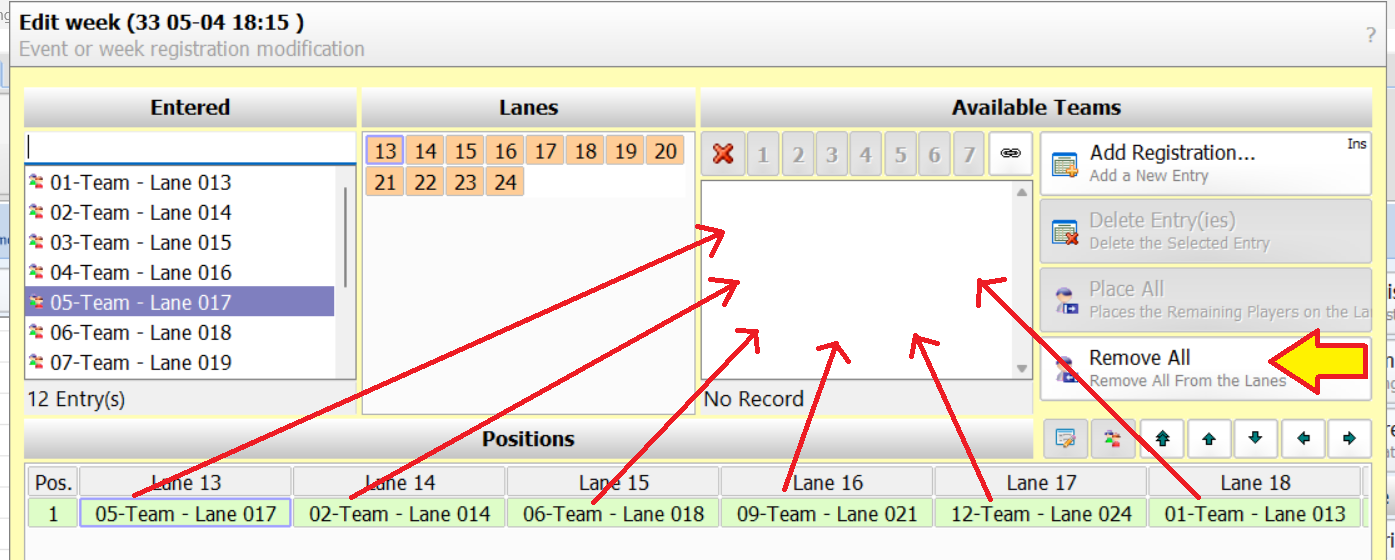
3) Click Remove All. The teams are removed from the lanes and they go to the box under Available Teams.
4) Highlight the green box under the first lane. This box has a blue outline. Double-click the team that bowls Game 1 on this lane.
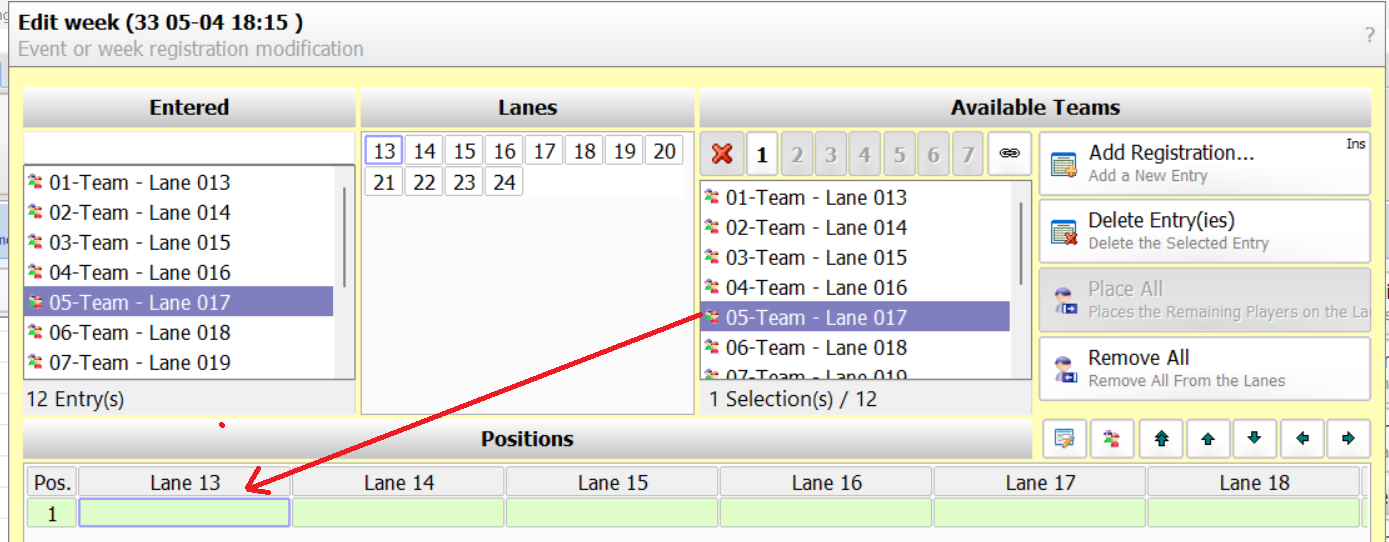
5) Highlight the green box under the second lane. This box has a blue outline. Double-click the team that bowls Game 1 on this lane.
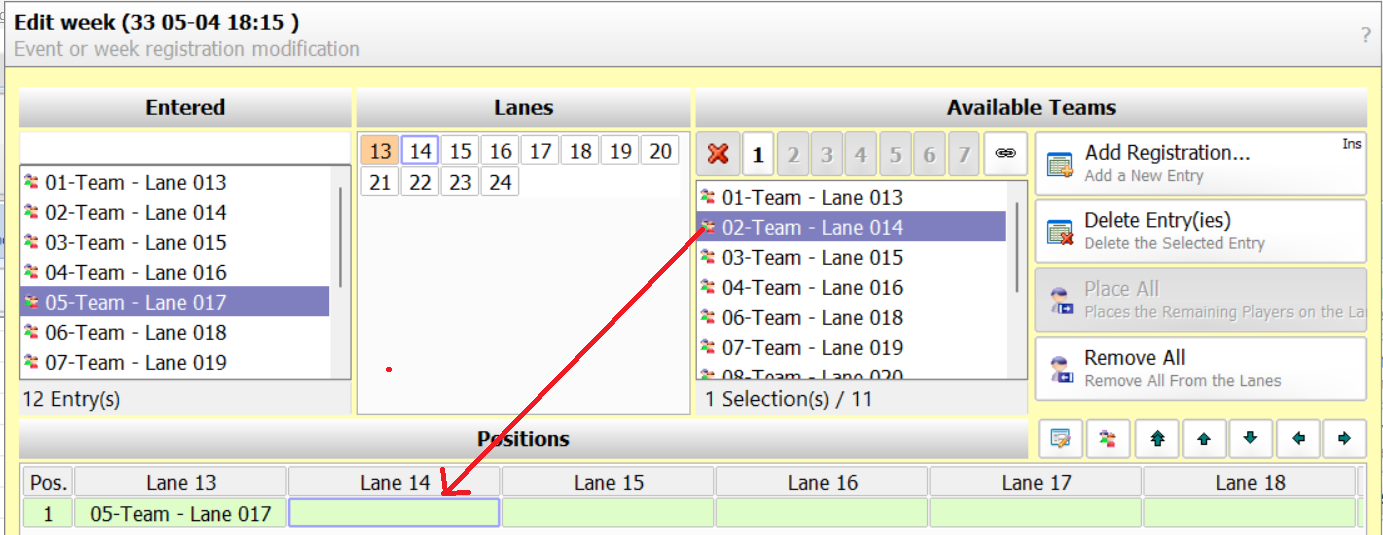
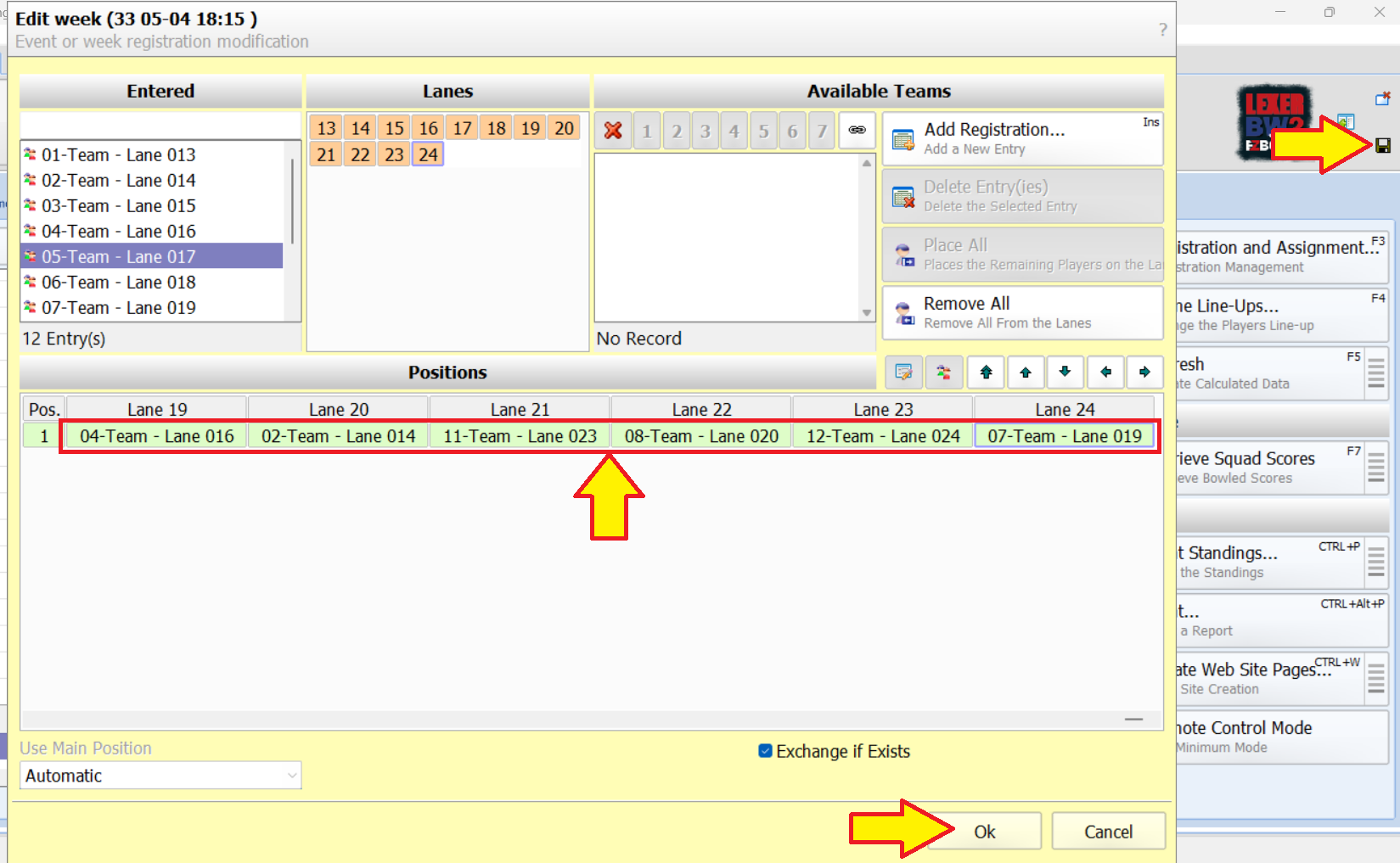
6) Repeat until all the teams are assigned to their starting lane.
7) Click OK to confirm. Click the little brown diskette at the top right to save the modifications.
CUSTOMIZING THE LANE ROTATION
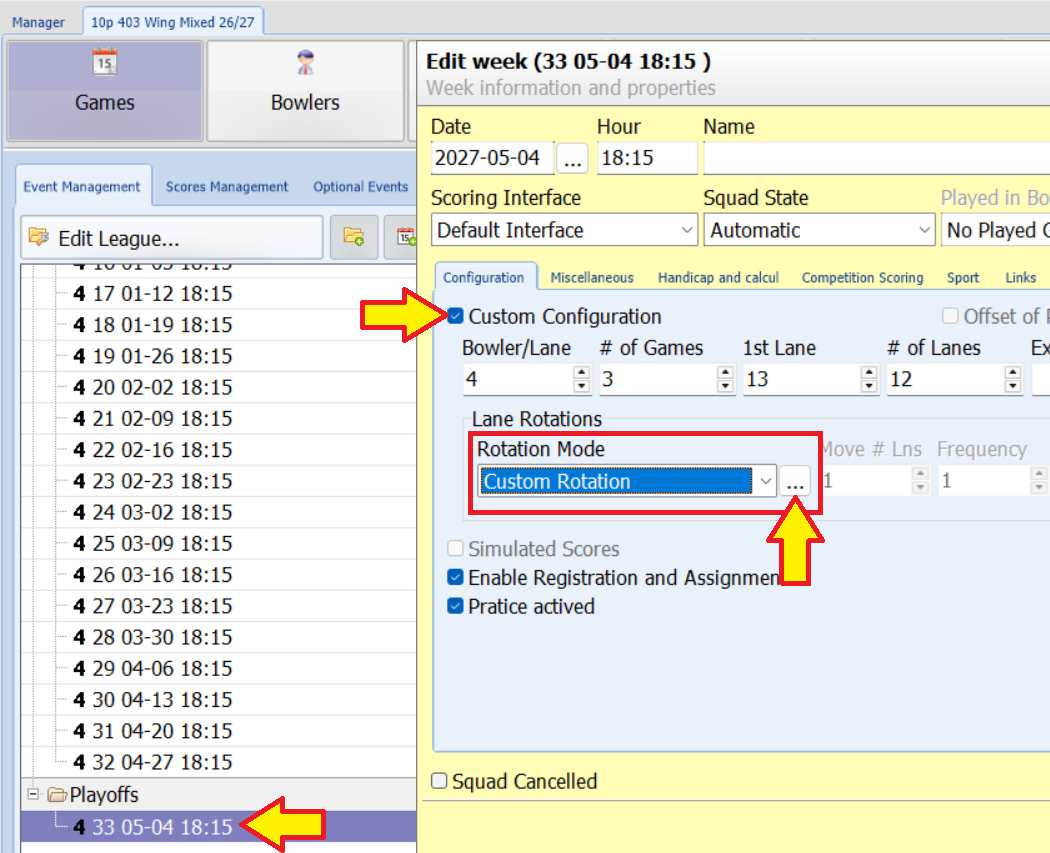
8) Double-click Week 33 > Check the option Custom Configuration > Click the drop-down under Rotation Mode and select Custom Rotation > Click the 3 dots [...].
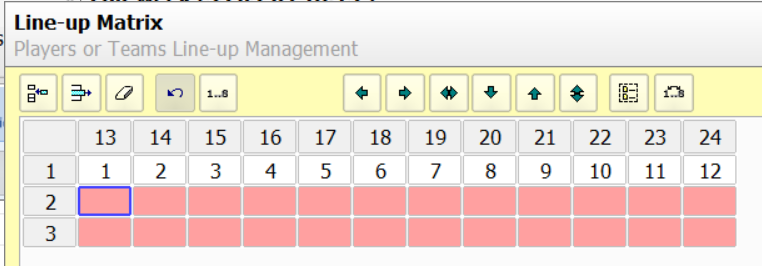
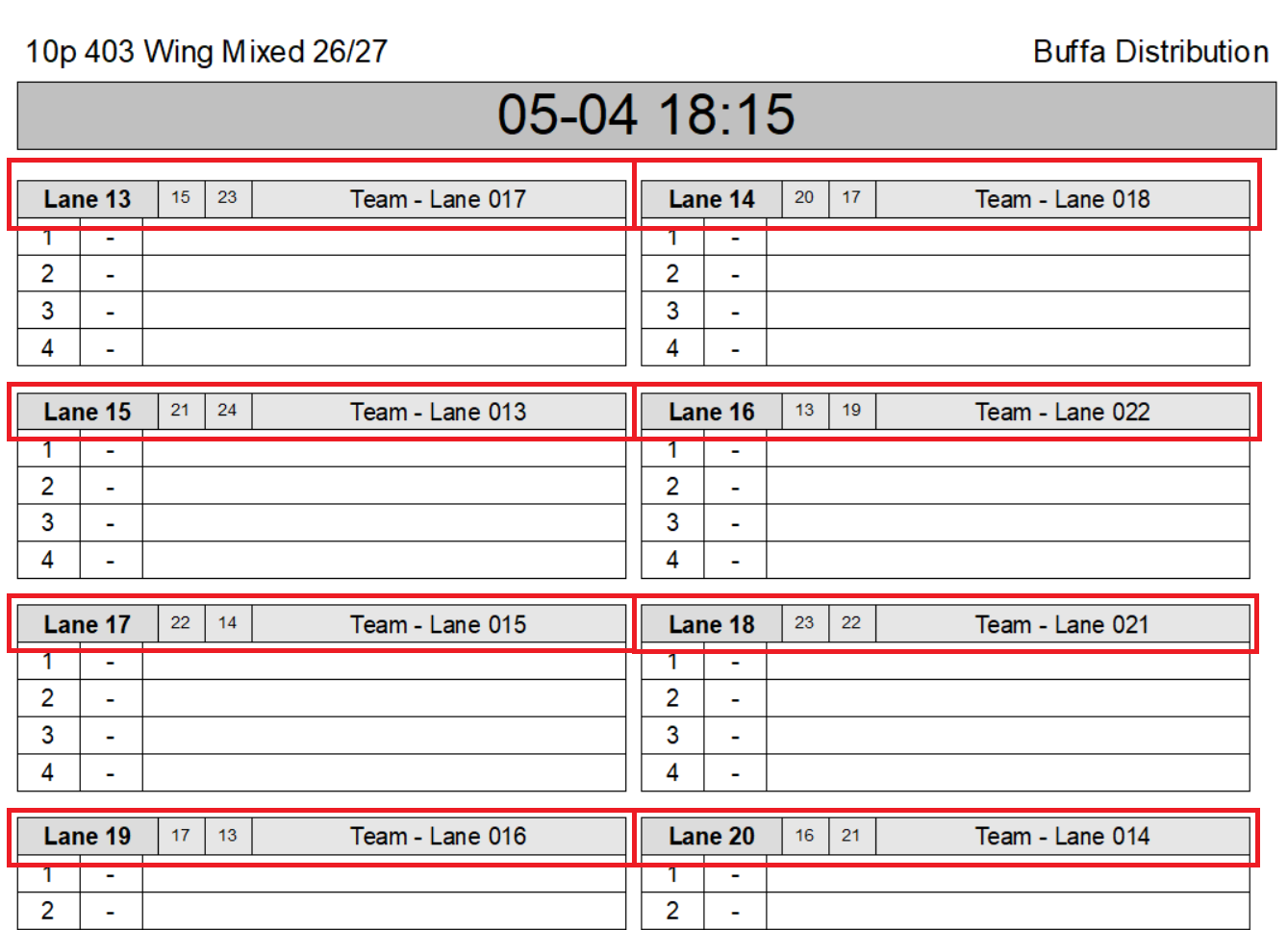
9) Blank matrix: This league has 12 teams and bowls on Lane 13 to Lane 24.
- Game 1: You MUST enter numbers 1 to 12 under lanes 13 to 24.
From there, let's have a second look at the lane assignment provided by the league secretary...

Rule of thumb: Following the numbers 1 to 12 entered in Game 1...
Team 5 becomes 1 and bowls on these lanes: 13-15-23
Team 6 becomes 2 and bowls on these lanes: 14-20-17
Team 1 becomes 3 and bowls on these lanes: 15-21-24
Team 10 becomes 4 and bowls on these lanes: 16-13-19
Team 3 becomes 5 and bowls on these lanes: 17-22-14
Team 9 becomes 6 and bowls on these lanes: 18-23-22
Team 4 becomes 7 and bowls on these lanes: 19-17-13
Team 2 becomes 8 and bowls on these lanes: 20-16-21
Team 11 becomes 9 and bowls on these lanes: 21-24-20
Team 8 becomes 10 and bowls on these lanes: 22-14-18
Team 12 becomes 11 and bowls on these lanes: 23-18-15
Team 7 becomes 12 and bowls on these lanes: 24-19-16
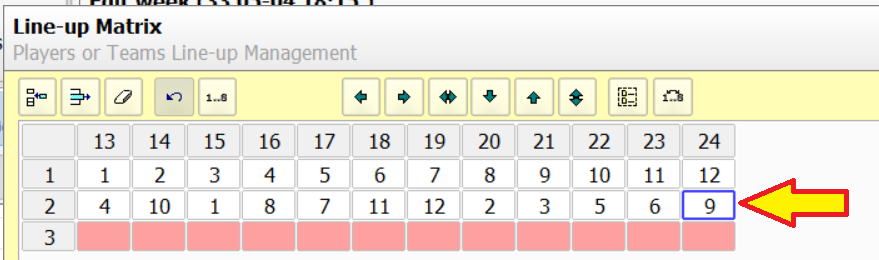
- Game 2:
- Team 5 (1) starting on Lane 13 bowls Game 2 on Lane 15
- Team 6 (2) starting on Lane 14 bowls Game 2 on Lane 20
- ...
- Team 12 (11) starting on Lane 23 bowls Game 2 on Lane 18
- Team 7 (12) starting on Lane 24 bowls Game 2 on Lane 19
- ... Based on that, the numbers in Game 2 must be those ...
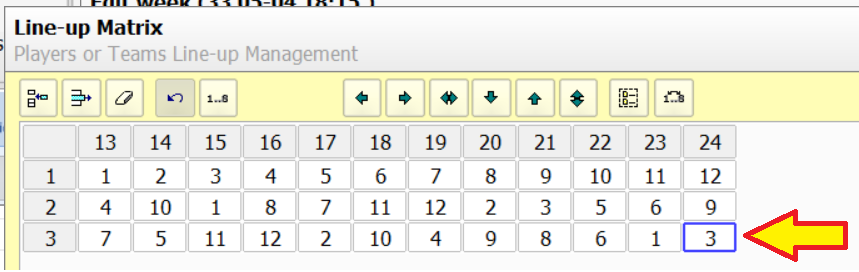
- Game 3:
- Team 5 (1) starting on Lane 13 bowls Game 3 on Lane 23
- Team 6 (2) starting on Lane 14 bowls Game 3 on Lane 17
- ...
- Team 12 (11) starting on Lane 23 bowls Game 3 on Lane 15
- Team 7 (12) starting on Lane 24 bowls Game 3 on Lane 16
- ... Based on that, the numbers in Game 2 must be those ...
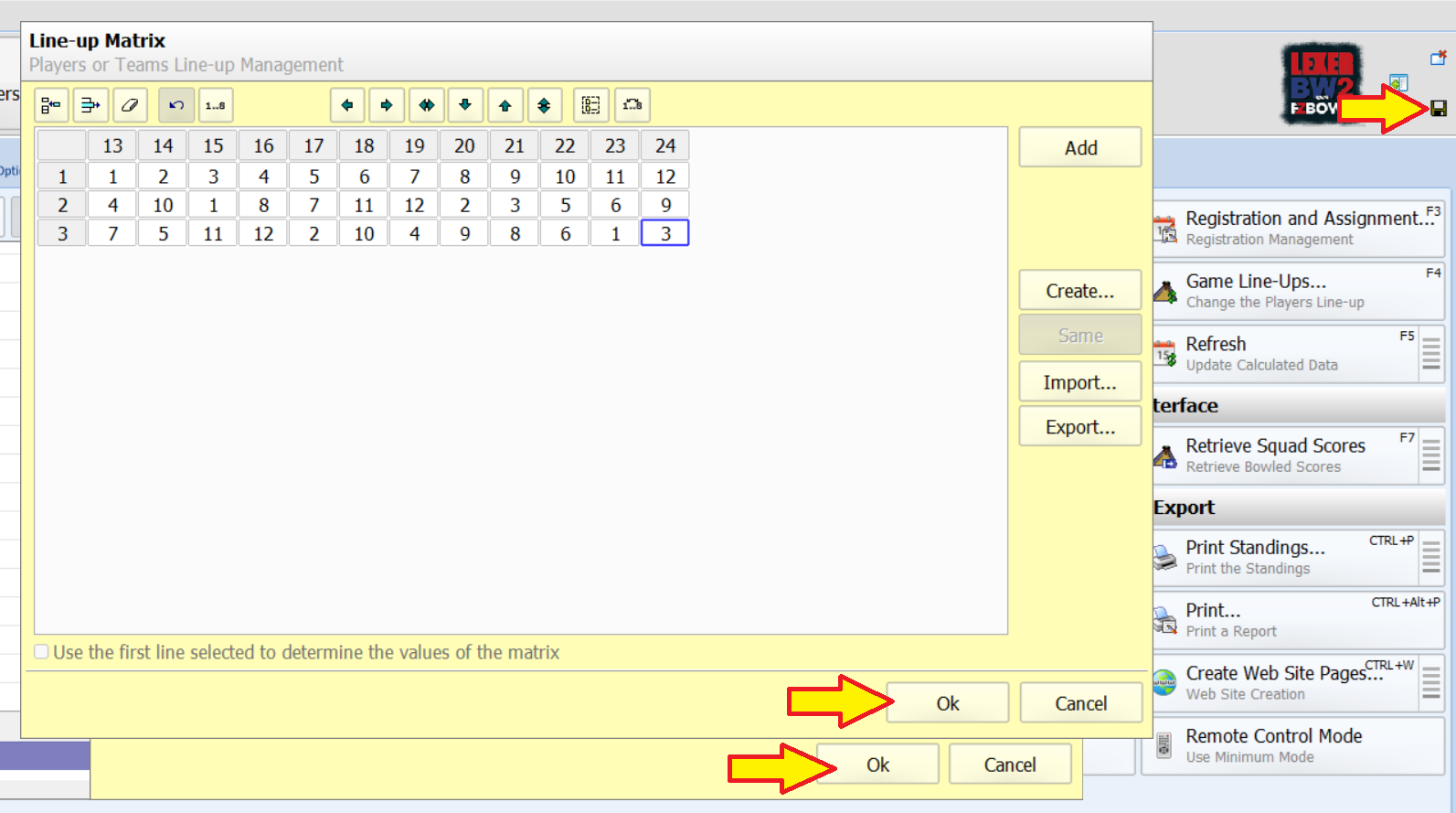
10) Click OK to confirm the matrix. If a number is duplicated, you will stay on this screen.
11) Click OK to exit out from the modification screen of Week 33.
12) Click the little brown diskette at the top right to save the modifications.
CONFIRMING THE LANE ASSIGNMENT & ROTATION
13) Select Week 33.
14) Click Print Lane Assignments.
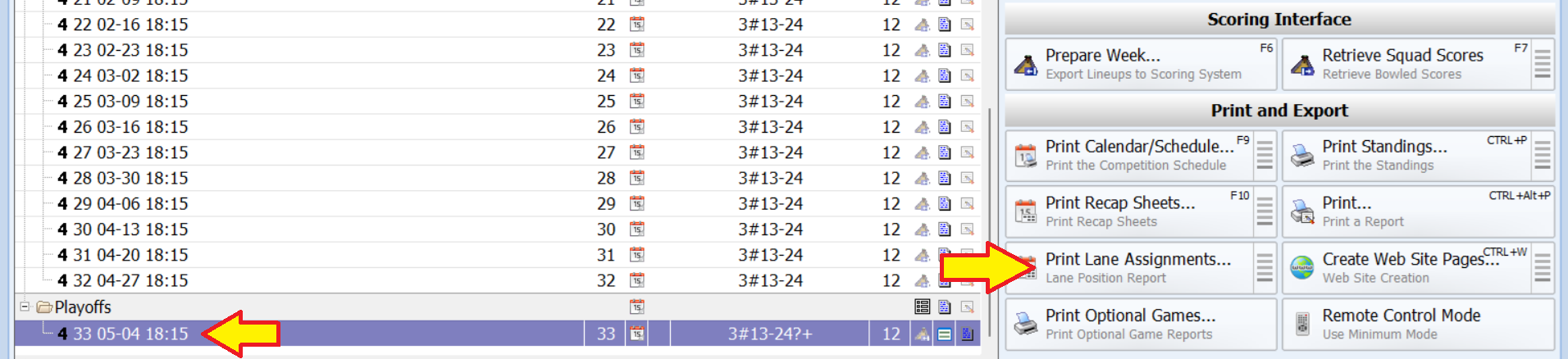
15) Have a look at the lane assignment and rotation of every team. It should match what the league secretary gave you.
-----
0:00 – Introduction
1:19 – Preliminary Steps Before Configuring in Lexer
1:24 – Understanding the Lane Rotation
3:08 – Configuring the Lane Rotation (Making the Matrix)
8:31 – Configuring the Custom Lane Rotation in Lexer
8:36 – Registration and Assignment of Game 1
10:49 – Custom Lane Rotation (the Matrix)
16:20 – Conclusion
Was this article helpful?
That’s Great!
Thank you for your feedback
Sorry! We couldn't be helpful
Thank you for your feedback
Feedback sent
We appreciate your effort and will try to fix the article