If there is just one pair of lanes in No Comm (lightning bolt) and if none of the procedures from the Lightning Bolts / No Communication article helped you in solving this issue and swapping the HUBs was not successful, you need to know if the CPU is defective or not by swapping it with the CPU from another pair of lanes (that works well).
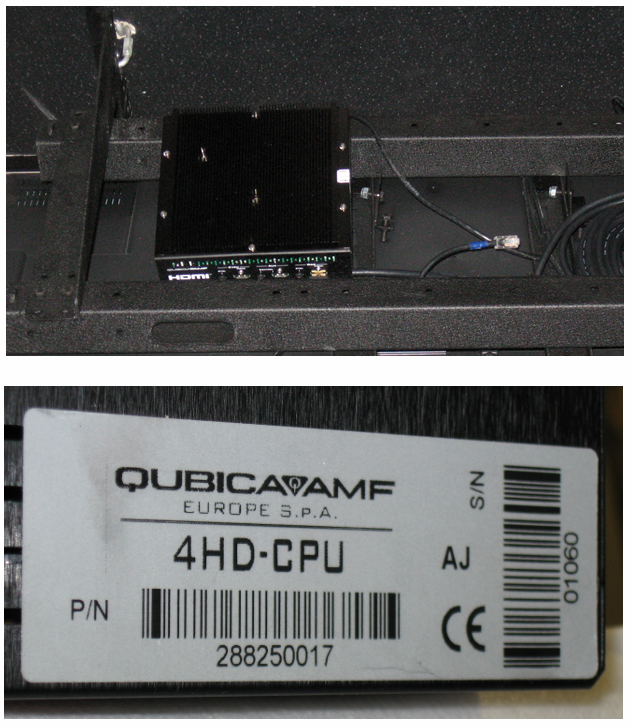
SWAPPING THE CPUs
1) With your cellphone, snap a couple of photos of the two CPUs to make sure you can reconnect the cables into the right ports. Make sure to take a photo of the serial number that is under the code bar.
2) Disconnect the power cable of the HUB. Repeat that to the other HUB.
3) Disconnect the cables from the CPU. Repeat that to the other CPU.
4) Swap the two CPUs and reconnect the cables.
5) Reconnect the power cable of the two HUBs. Reconnecting the power cable to the HUB is the roughly the same as uploading the programs to the lanes from Setup > Lane Setup > Upload to lanes. After a few minutes, the two pairs of lanes will fail to reboot normally. Wait for that moment.
CHANGING THE TWO SERIAL NUMBERS
6) In Conqueror, go to Setup > Lane Setup > Lane Setup.
7) Select one lane of the pair of lanes you are having some issues with and click Modify.
- Enter the serial number of the CPU you just installed (the CPU of that pair of lanes that works fine).
- Click OK to exit out from this window.
8) Select one lane of the pair of lanes that works fine and click Modify.
- Enter the serial number of the CPU you just installed (the CPU of that pair of lanes you are having some issues with).
- Click OK to exit out from this window.
9) Click Save at the bottom right.
10) Click OK to this message: The modifications made to some parameters will take effect only after programs have been sent to lanes.
11) Conqueror shuts off and reboots by itself. Enter your credentials to open a session
SENDING THE PROGRAMS TO THE LANES
1) In Conqueror, go to Setup > Lane Setup > Upload to Lanes.
2) Lanes selected: Click the blue box at the bottom, select the two pairs of lanes from which CPUs were swapped (selected pairs are yellow) and click OK.
3) Click Upload at the bottom right (green arrow). Answer YES to this question: Do you want to send programs to specified lanes? If there are other questions, answer either YES or OK to start the upload.
4) Next to two pairs of lanes, you see Initialize... ... ... ...
- SUCCESS: If the communication between Conqueror and the HUB of each pair of lanes is reestablished, you see Step 1 of 25, Step 2 of 25, Step 3 of 25, etc. until full completion (Upload successfully completed). From there, you can exit out from this screen and go back to the All Lanes window. The pairs of lanes will still show a lightning bolt, but, soon enough, you will see BOOTING. Give it a few more minutes and the pairs of lanes will come back to life.
- FAILURE: If the communication between Conqueror at the HUB of each pair of lanes is NOT reestablished, the process stays at Initialize... ... ... until it fails and shows Time Period Elapsed. If so, see the next section below...
If the No Comm (lightning bolt) issue is transferred to the pair of lanes that used to work fine, chances are that this CPU is defective. Install a spare CPU and see if the pair of lanes reboots normally. It should. Make sure to go back in Lane Setup to put the proper serial number.
If the No Comm (lightning bolt) issue stays on the defective pair, the CPU is not the cause of the no communication issue. You might want to reach out to our tech support department and ask for a technician to verify the IP addresses and overview some settings.
Was this article helpful?
That’s Great!
Thank you for your feedback
Sorry! We couldn't be helpful
Thank you for your feedback
Feedback sent
We appreciate your effort and will try to fix the article