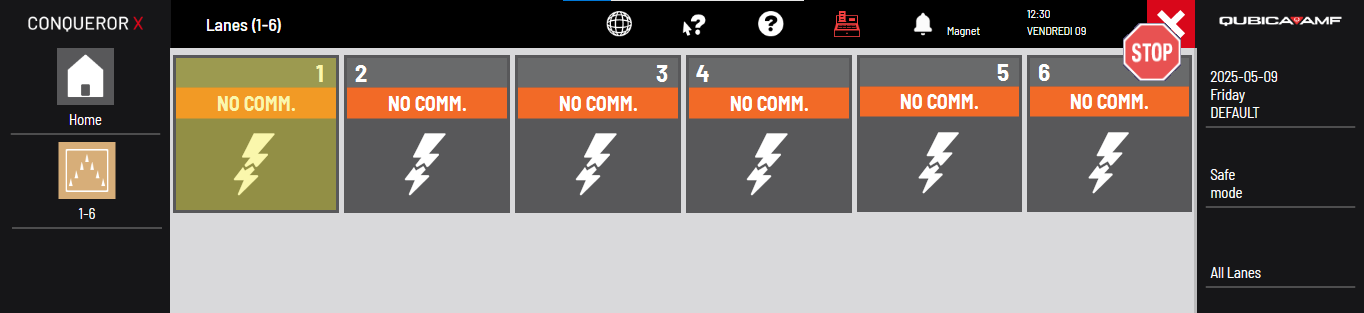
At any time, a lightning bolt may appear on your lanes in the All Lanes window of Conqueror. It can be a pair of lanes, multiple pairs of lanes or all the lanes. Lightning bolts mean the communication between the server computer (which can be the front desk computer) and the lanes is weak or deficient. Several causes can lead to a "No Comm" issue. Yes, you can reach us out, but you can troubleshoot the issue yourself first. Please, read the steps below the troubleshoot the issue and hopefully solve it.
RESTARTING THE SERVER COMPUTER
If the bowling centre is quite small, the front desk computer might be the server computer itself. If the bowling centre has a lot of lanes and features (such as SuperTouch consoles, CenterPunch, Intercom system, etc.), there must be a separate server computer hiding either next to the front desk computer or in another room (office, tech room, etc.).
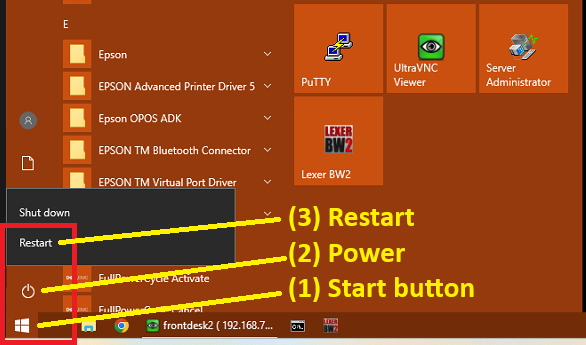
1) Click the Windows Start button at to the bottom left.
2) Click the Power button.
3) Click Restart.
If the above does not help...
CHECKING IF DEVICES ARE POWERED ON
1) Battery pack at the front desk: In case of a power outage, the battery pack might lose all its power and be turned off automatically after 30-60 minutes. Push the black button to restart the battery pack.
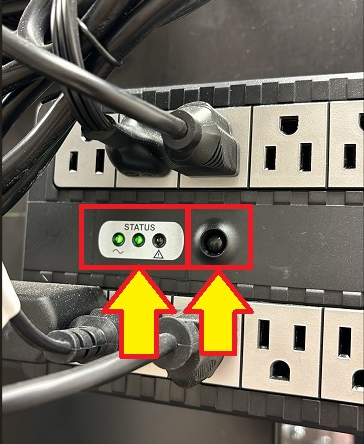
2) Netgear switch at the front desk: The power cable of this switch is connected to the battery pack. If the battery pack is off, this switch will be off and it will not communicate with the switch at the back. Also, this switch has an ON/OFF button. Check if it points to ON. If the switch is powered on, the ports in which a cable is connected to must have a light on (mostly green). Also, make sure that every cable is connected properly.
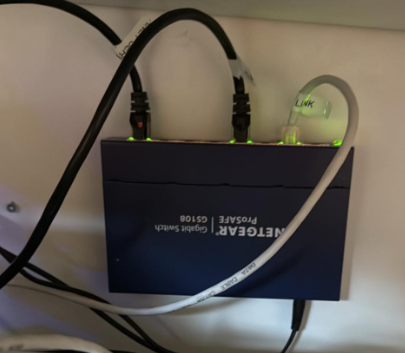
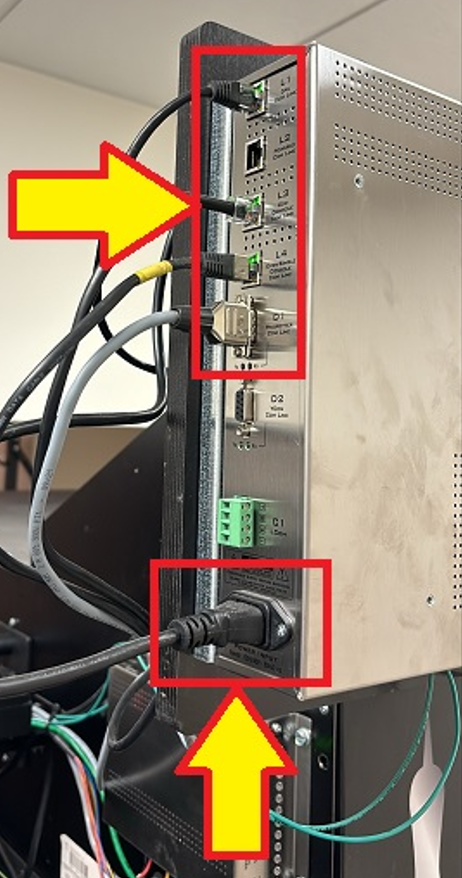
3) HUB at the back: Every pair of lanes has a HUB similar to this one. Find it. The black power cable at the bottom left is connected to a power outlet nearby. Does this HUB seem to be powered on? Do you see some lights on the left side? You have to pay more attention to the three cables on the left (black, grey, yellow). On this photo, if we look closely, we can see three green lights. And, can you reach the top of the HUB? There is a black cable all by itself. Is there a light there too?
Watch out! Some centres manually turn off the main breaker of the HUBs at night. Make sure that the breaker is ON too.
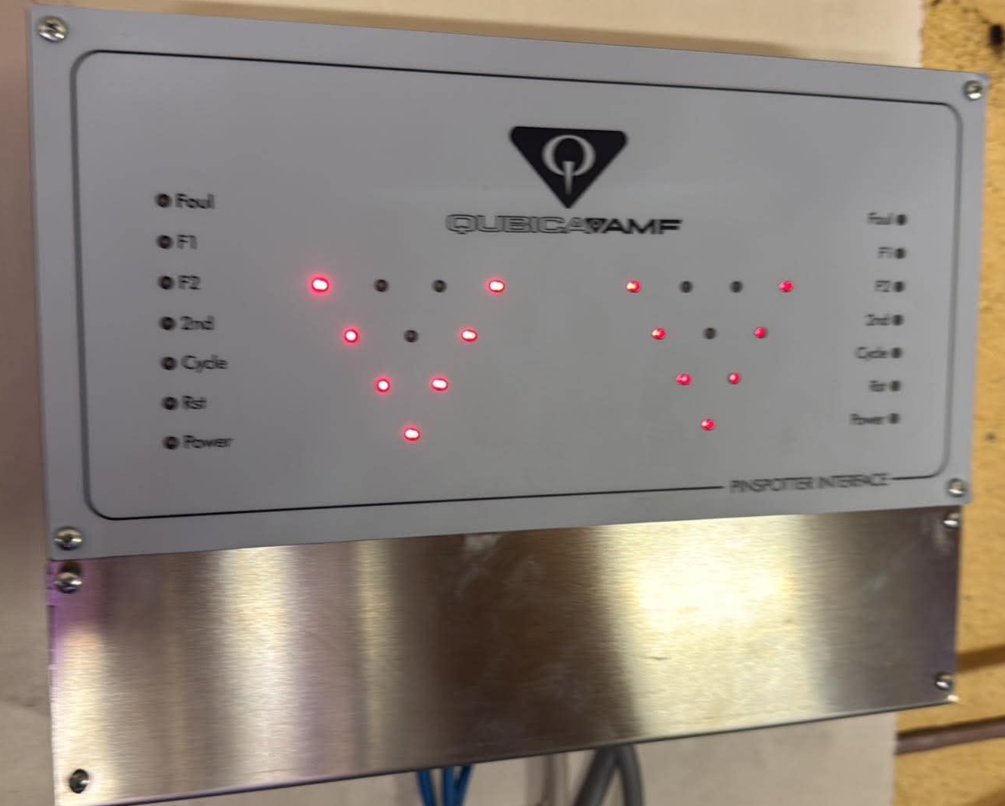
4) QubicaAMF Interface: If each pair is equipped with an interface (mostly for non-QubicaAMF pinsetters). See if this device has red lights.
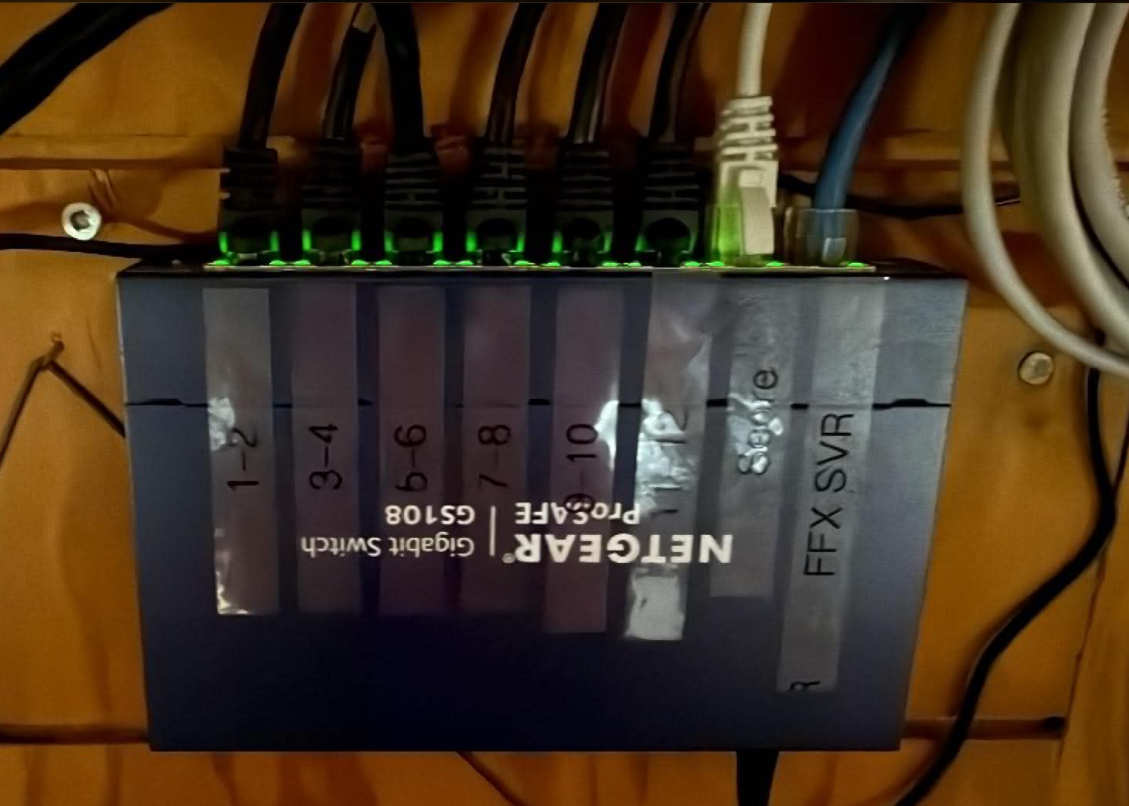
5) Netgear switch at the back: This switch is connected to a power outlet nearby. Depending on how many lanes there are at the bowling centre, there might be more than one Netgear switch. At this centre, there are twelve lanes, so there is only one Netgear switch. But, imagine a 24-lane centre, there might be three switches: one for lanes 1-12, one for lanes 13-24 and one main switch. On this photo, every port has a green light. Also, make sure that every cable is connected properly.
If the devices are all powered on...
SENDING THE PROGRAMS TO THE LANES
1) In Conqueror, go to Setup > Lane Setup > Upload to Lanes.
2) Lanes selected: Click the blue box at the bottom, select the pairs of lanes on which there is a lightning bolt / no comm (selected pairs are yellow) and click OK.
3) Click Upload at the bottom right (green arrow). Answer YES to this question: Do you want to send programs to specified lanes? If there are other questions, answer either YES or OK to start the upload.
4) Next to each pair of lanes, you see Initialize... ... ... ...
- SUCCESS: If the communication between Conqueror and the HUB of each pair of lanes is reestablished, you see Step 1 of 25, Step 2 of 25, Step 3 of 25, etc. until full completion (Upload successfully completed). From there, you can exit out from this screen and go back to the All Lanes window. The pairs of lanes will still show a lightning bolt, but, soon enough, you will see BOOTING. Give it a few more minutes and the pairs of lanes will come back to life.
- FAILURE: If the communication between Conqueror at the HUB of each pair of lanes is NOT reestablished, the process stays at Initialize... ... ... until it fails and shows Time Period Elapsed. If so, see the next section below...
REBOOTING THE HUBs & SENDING THE PROGRAMS TO THE LANES
Usually, this procedure has a lot of success. Follow these steps as they are written, please.
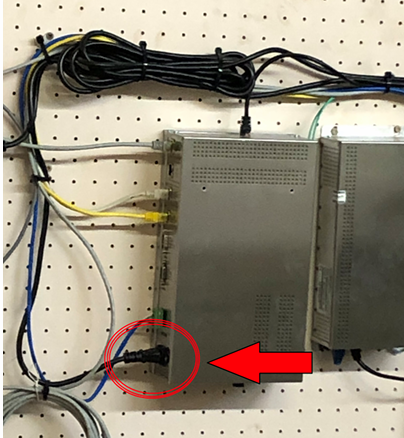
1) Walk to the pinsetter area and unplug the black power cable at the bottom left of each HUB. Leave it unplugged for now.
2) Come back to the front counter.
3) In Conqueror, go to Setup > Lane Setup > Upload to Lanes.
4) Lanes selected: Click the blue box at the bottom, select the pairs of lanes on which there is a lightning bolt / no comm (selected pairs are yellow) and click OK.
5) Click Upload at the bottom right (green arrow). Answer YES to this question: Do you want to send programs to specified lanes? If there are other questions, answer either YES or OK to start the upload.
6) Walk to the pinsetter area and reconnect the power cable of each HUB.
7) Come back to the front counter and have a look at your screen. Next to each pair of lanes, you see Initialize... ... ... ... You cannot exit out from this window. If you need to turn on a lane to someone or sell something F&B, leave this screen open and go to the All Lanes window or POS window using the shortcut buttons from the black right panel.
- SUCCESS: If the communication between Conqueror at the HUB of each pair of lanes is reestablished, you see Step 1 of 25, Step 2 of 25, Step 3 of 25, etc. until full completion (Upload successfully completed). From there, you can exit out from this screen and go back to the All Lanes window. The pairs of lanes will still show a lightning bolt, but, soon enough, you will see BOOTING. Give it a few more minutes and the pairs of lanes will come back to life.
- FAILURE: If the communication between Conqueror at the HUB of each pair of lanes is NOT reestablished, the process stays at Initialize... ... ... until it fails and shows Time Period Elapsed. If so, see the next section below...
REBOOTING THE HUBs & REINITIALIZING THE LANES
Follow these steps as they are written, please.
1) Walk to the pinsetter area and unplug the black power cable at the bottom left of each HUB. Leave it unplugged for now.
2) Come back to the front counter.
3) In Conqueror, go to Setup > Lane Setup > Upload to Lanes.
4) Lanes selected: Click the blue box at the bottom, select the pairs of lanes on which there is a lightning bolt / no comm (selected pairs are yellow) and click OK.
5) Check the option Erase memory at the bottom left.
6) Click Reset at the bottom right (green circling arrow). Answer YES to this question: Do you want to reset specified lanes?
7) Click Reinitialize at the bottom right (blue circling arrows). Answer YES to this question: This is a very long procedure. Are you sure you want to proceed with lane reinitialize? If there are other questions, answer either YES or OK to start the upload.
8) Walk to the pinsetter area and reconnect the power cable of each HUB.
9) Come back to the front counter and have a look at your screen. Next to each pair of lanes, you see Initialize... ... ... ... You cannot exit out from this window. If you need to turn on a lane to someone or sell something F&B, leave this screen open and go to the All Lanes window or POS window using the shortcut buttons from the black right panel.
- SUCCESS: If the communication between Conqueror at the HUB of each pair of lanes is reestablished, you see Step 1 of 25, Step 2 of 25, Step 3 of 25, etc. until full completion (Upload successfully completed). From there, you can exit out from this screen and go back to the All Lanes window. The pairs of lanes will still show a lightning bolt, but, soon enough, you will see BOOTING. Give it a few more minutes and the pairs of lanes will come back to life.
- FAILURE: If the communication between Conqueror at the HUB of each pair of lanes is NOT reestablished, the process stays at Initialize... ... ... until it fails and shows Time Period Elapsed.
If there are still pairs of lanes suffering from a no communication issue and showing a lightning bolt in the All Lanes window, the issue might be wrong IP addresses (this will affect all the lanes) or a defective HUB or a defective CPU (this is a little black box located behind to two upper monitors - it is responsible of showing the scoring grids and the animations on the upper monitors).
If you suspect a defective HUB, you can CLICK HERE to read the steps on how to troubleshoot a defective HUB.
If you suspect a defective CPU, you can CLICK HERE to read the steps on how to troubleshoot a defective CPU.
We advice that IP addresses are validated by our IT specialist at Buffa Distribution. He will remote in and check the IP addresses himself.
Was this article helpful?
That’s Great!
Thank you for your feedback
Sorry! We couldn't be helpful
Thank you for your feedback
Feedback sent
We appreciate your effort and will try to fix the article