This documentation was written by QubicaAMF and revised on June 2026.
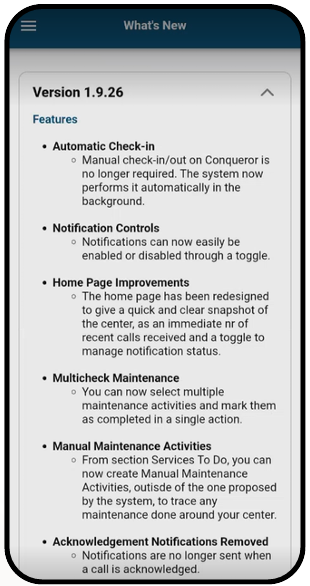
The latest update to the Tech Wizard App introduces a range of enhancements and feature changes designed to streamline workflows, improve efficiency, and give users greater control over their experience. Notably, the Check-In requirement from a Conqueror Terminal has been removed, simplifying access and daily use. New customization options, such as the Notification Alerts Toggle, allow users to manage how they receive updates while still maintaining full visibility of Active Calls and Call History at all times. Additional updates refine the notification process, introduce a convenient Change Center feature for switching between Bowling Centers, and enhance the Home Screen with a summary of recent activity. Operational improvements, including the ability to “Select All” when completing Maintenance Tasks and to create Manual Maintenance Entries, significantly reduce time spent on routine tasks. Alongside these updates, the app now offers always available Lane Commands, a dedicated “What’s New” section for tracking updates, and an expanded Feedback area that supports file uploads—ensuring ongoing communication and continuous improvement based on user input.
Notifications & Changing Centers
Turning on/Off Notifications
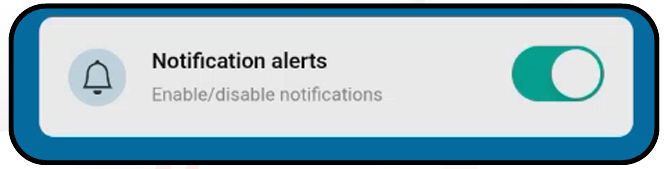
To enable notifications, locate the “Notification Alerts” toggle on the Home screen. Simply tap the toggle switch so that it moves to the ON position. Once enabled, you will begin receiving alerts for active calls that require attention.
In previous versions of the app, stopping notifications required logging out. With this update, you can remain logged in and easily control notifications at any time using this convenient toggle—turn it ON to receive alerts or OFF to pause them without interrupting your session.
Changing Centers
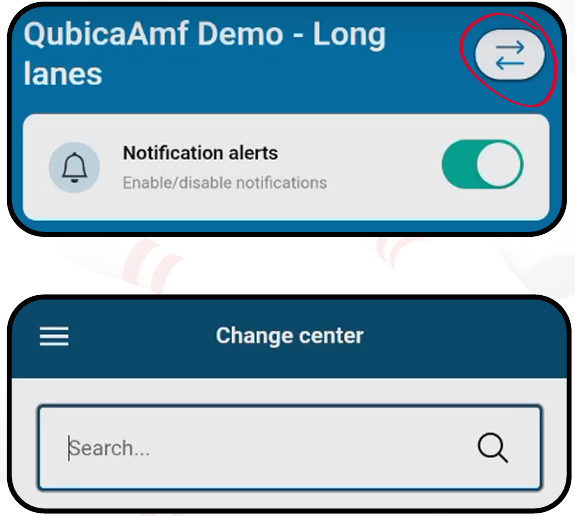
- From the Home screen locate the Change Center icon (two arrows forming a circle) in the top-right corner of the screen.
- Tap this icon to open the Change Center menu.
- In the list that appears, scroll or use the search bar to find your desired center.
- Tap on the center name to switch to that location.
Please Note:
- You can only receive notifications from one center at a time. When you switch centers, notifications will apply only to the currently selected center.
- It is not possible to receive notifications from multiple centers simultaneously.
- The Notification Alerts toggle setting will remain the same for each center. If notifications are turned on or off, that preference will be saved and remain unchanged when you switch back to that center.
Services To Do
Managing Maintenance Tasks in the Services To Do Section
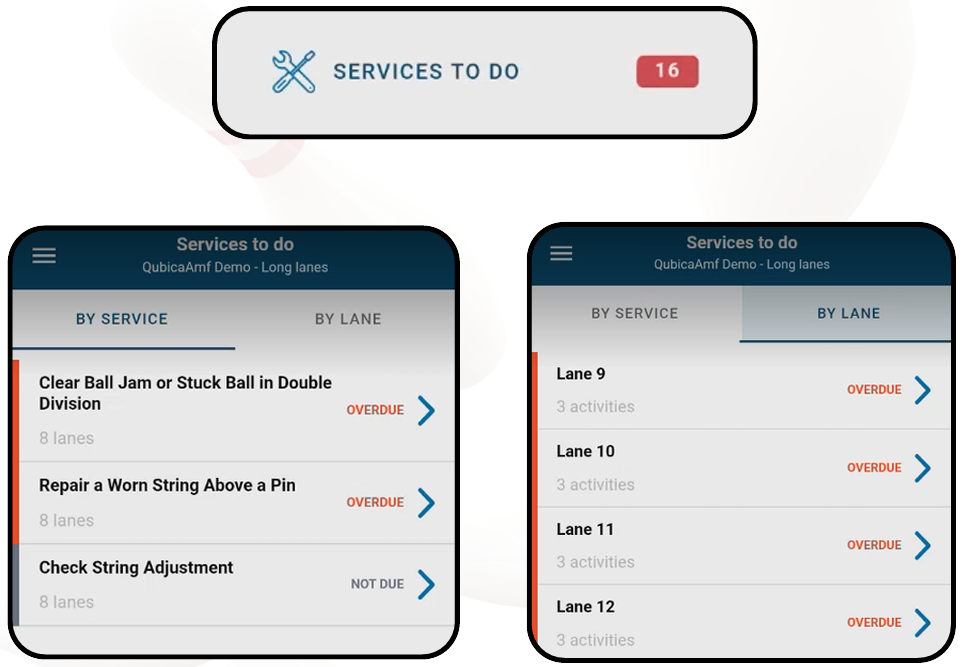
From the Services to Do screen you can view maintenance tasks either by service type or by lane:
- Selecting a service (for example, “Clear Ball Jam or Stuck Ball in Double Division”) will display a list of all lanes that require that service.
- Selecting a specific lane will show all required maintenance activities for that lane.
Completing Multiple Tasks at Once
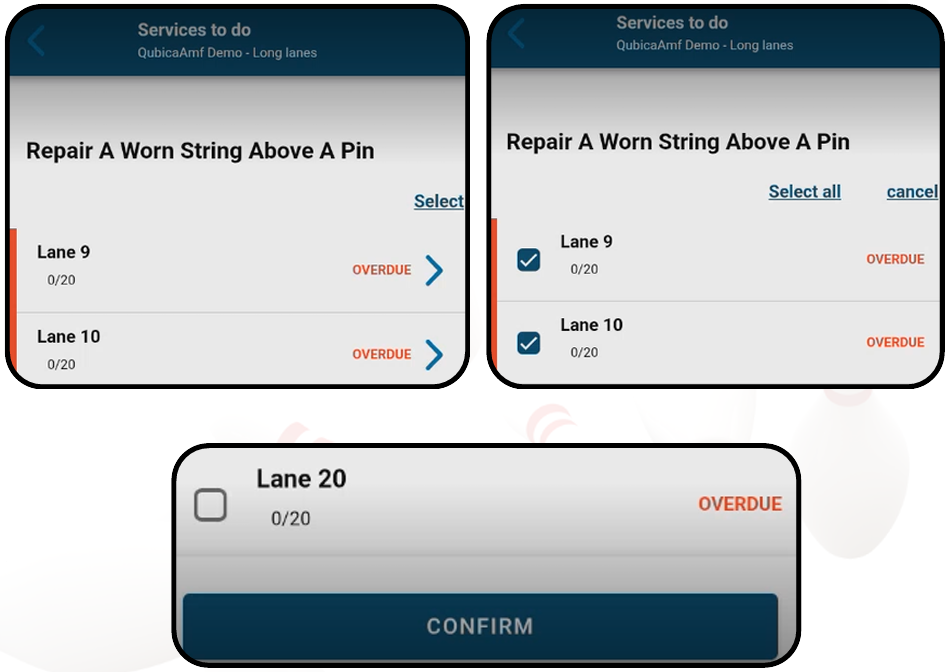
- From either the service list or lane view, select “Select” in the top-right corner of the screen.
- Choose individual lanes or activities, or tap “Select All” to quickly highlight everything shown.
- Tap “Confirm” to mark all selected items as completed.
This updated process eliminates the need to mark each task individually, saving significant time.
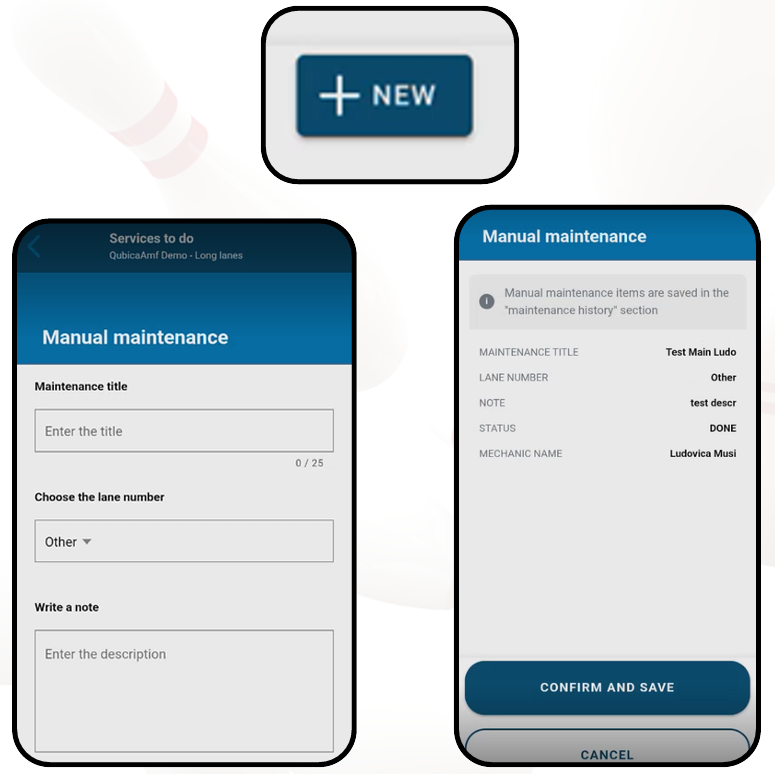
Creating a Manual Maintenance Entry
You can also log maintenance that is not pre-listed in the app:
- From the Services to Do screen, tap “New” at the bottom of the screen.
- Enter a title for the maintenance.
- Optionally assign it to a specific lane, or leave it unassigned.
- Add a description with details about the work completed.
- Tap “Create.”
Once created, the maintenance entry is automatically marked as complete.
Maintenance History
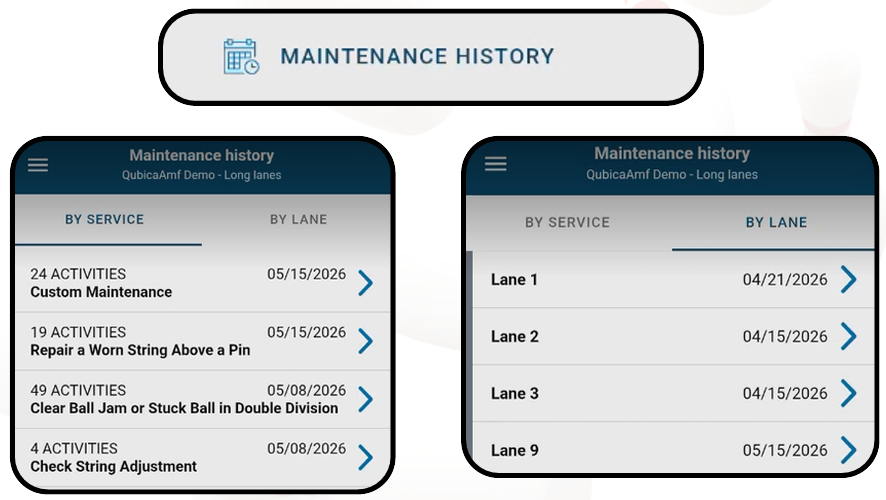
To review completed maintenance activities, open the menu from the left-hand side of the screen and select “Maintenance History."
From here, you can view and track all recorded maintenance across your center:
- All maintenance entries are automatically saved and organized by date.
- You can choose to view history by:
- Service, where manually created entries (labeled as “Other”) will appear at the top, or
- Lane, where manual entries will appear at the bottom.
- Selecting a specific lane will display a complete, date-ordered list of all maintenance completed for that lane.
- Manually created maintenance entries are logged as completed immediately and are intended for real-time tracking only (they cannot be scheduled in advance).
This section provides a centralized way to monitor maintenance activity, ensure accountability, and review past work across all lanes and services.
Calls & Lane Commands
The left-hand menu now provides direct access to both Calls and Lane Commands at any time. These features are no longer tied to the Check-In process or notification settings.
- Simply open the menu and select “Calls” or “Lane Commands” to view current activity.
- Even if the Notification Alerts toggle is turned off, you can still use this menu to check for active calls whenever needed.
Call Notifications
- With the updated system, you will only receive a single notification when a call is first created.
- You will no longer receive a separate notification when a call has been acknowledged.
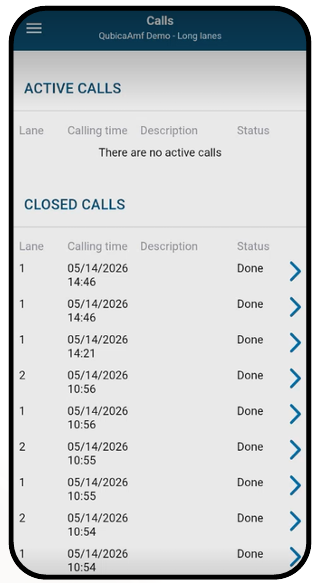
To check the status of a call:
- Open the menu and select “Calls.”
- On the Calls screen you can view:
- Active Calls (if any are currently open)
- Closed Calls, including details such as lane number, date, and status
- Within this view, you can also see whether a call has been acknowledged and who acknowledged it.
Home Screen
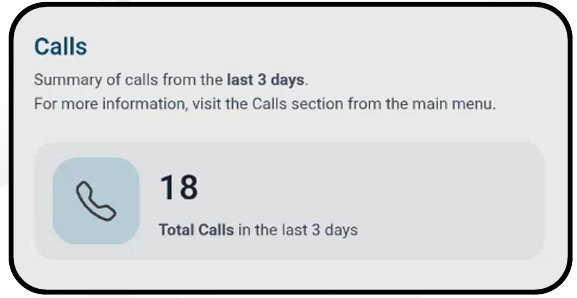
The Home screen now includes a quick summary showing the total number of calls received within the last three days. This number updates automatically each day, giving you an at a-glance view of recent activity without needing to open the Calls screen.
Videos & Documentation
The Videos & Documentation section of the Tech Wizard App serves as a centralized resource for learning and reference. In this section, users can access both step-by-step walkthrough videos and detailed written documentation covering all maintenance activities and service calls. This allows you to quickly review procedures, better understand required tasks, and ensure work is completed accurately and consistently. Whether you need a visual demonstration or written guidance, this section provides the necessary support to help you confidently perform and troubleshoot maintenance within your center.
What’s New
To stay informed about app updates, access the “What’s New” section from the left-hand menu (as shown in the screenshot). This section provides a detailed overview of the latest app version, including new features, improvements, and any changes made.
When a new update is available:
- A popup message will appear upon login, prompting you to review the latest updates.
- Selecting the popup will automatically take you to the What’s New page.
- If you close the popup, a blue dot indicator will appear next to “What’s New” in the menu as a reminder.
The blue dot will remain visible until you open and review the update details. The app is updated regularly, so it is recommended to check this section often to stay current on enhancements and new functionality.
Feedback
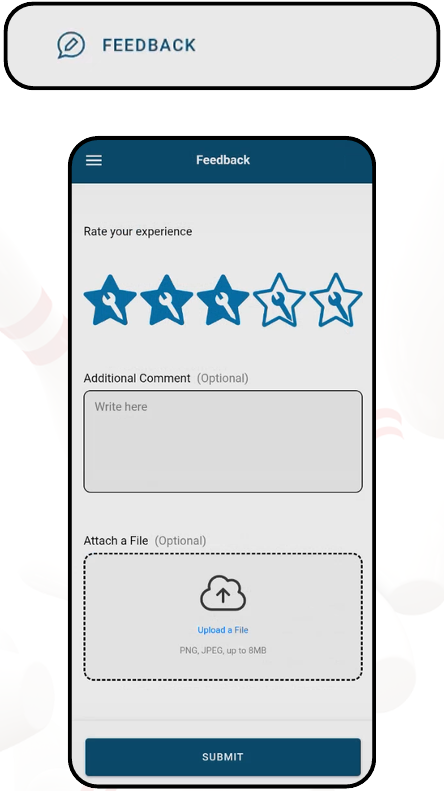
The Feedback section allows you to share your experience with the Tech Wizard App quickly and effectively.
Start by selecting a star rating to reflect your experience. Below the rating, you can enter additional details in the comment field to describe any issues, suggestions, or positive feedback.
You also have the option to attach supporting files, including screenshots or screen recordings of the app, to help provide more context. This is especially useful when reporting issues or demonstrating specific experiences within the app.
There is no limit to how many times you can submit feedback, and you are encouraged to provide ratings and comments whenever you have input to share. Ongoing feedback helps improve the app and ensures continuous enhancements based on real user experiences. Once all information has been added, select “Submit” to send your feedback.
Logging Out
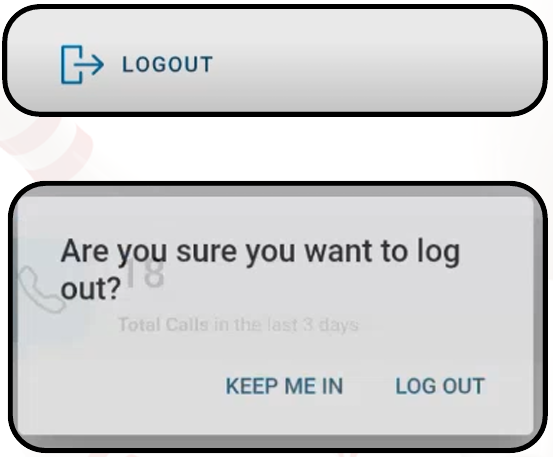
To log out of the Tech Wizard App, select “Log Out” from the menu. A confirmation popup will appear, prompting you to confirm your decision before logging out.
With the introduction of the Notification Alerts toggle, logging out is no longer necessary to stop receiving notifications. Simply turn the toggle OFF to pause notifications while remaining logged in. This allows you to maintain quick access to the app without interruptions, while still controlling when you receive alerts.
Was this article helpful?
That’s Great!
Thank you for your feedback
Sorry! We couldn't be helpful
Thank you for your feedback
Feedback sent
We appreciate your effort and will try to fix the article