This documentation was written by QubicaAMF and revised on June 2026.
This Getting Started with the Tech Wizard App guide is designed to help you quickly and successfully begin using the app. You will learn about the key prerequisites required for access, including ensuring your center is running a compatible Conqueror version, has an active Tech Wizard license, is connected to Cloud Services, and that your user profile is set up with the appropriate permissions.
Additionally, this guide will walk you through where and how to download the app, as well as provide step-by-step instructions for your initial login. By following these steps, you will be properly set up to take full advantage of the app’s features from the start.
Prerequisites
Prior to using the Tech Wizard app, it will be required to verify prerequisites for using thea pp and complete appropriate setups on the app and within QPortal. As the Tech Wizard app works in conjunction with Conqueror and Cloud Services, there are mandatory requirements for the app to properly function.
1. Conqueror Version 13.10.02 or above: This version allows the selection of Edge String as the Pinspotter type in LaneSetup.
2. Valid Tech Wizard License: This enables the Tech Wizard Permission on the QPortal, allowing admin users ofthe QPortal to grant the Tech Wizard Permission to other Users and allow them tolog in to the app.
3. Center is connected to the Cloud services: Cloud connection is essential as the Tech Wizard app sends and receives data andinformation to and from the Cloud.
4. A minimum of ONE Cloud User must have the Tech Wizard permission set within the QPortal: By default, the Owner and Admin Cloud Users on the QPortal have permission to login to and use the Tech Wizard App. These users can also add additional users in the QPortal and assign the Tech Wizard Permission to them. The Tech Wizard Permission can be assigned to a Role, which can then be assigned to any new Users who need access to the Tech Wizard app.
5. Cloud/Conqueror User Association: Conqueror can associate a local User to a User in the QPortal. The association isrequired in the Trouble Call System module in order to link a user in Conqueror toTCS calls listed in the Tech Wizard app.
Installing the Tech Wizard App
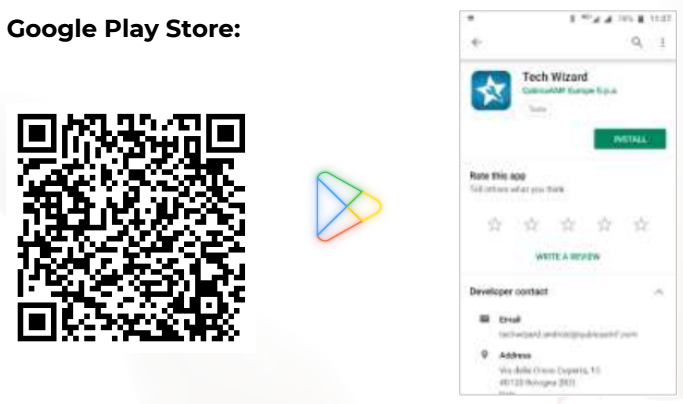
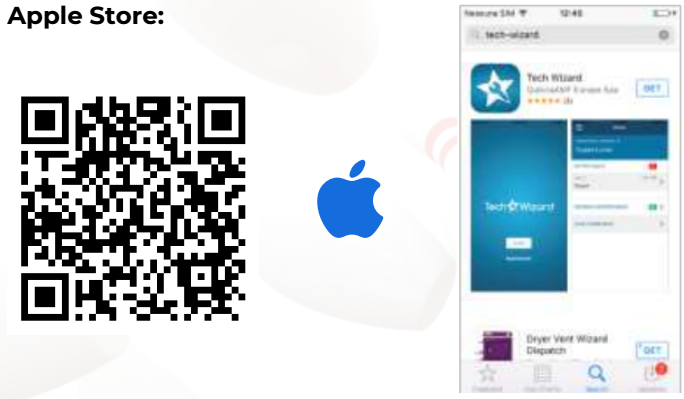
The Tech Wizard App is designed to run on mobile phones and must be downloaded and installed prior to beginning to use its features. Scan the QR codes below to download the app in both the Apple Store and the Google Play Store.
Check-in to the TechWizard app from Conqueror
If your staff wants to get live notifications sent to their phone (e.g. tangle on Lane 4), you want to add the TechWizard check-in quick button to at least one of the front desk computers.
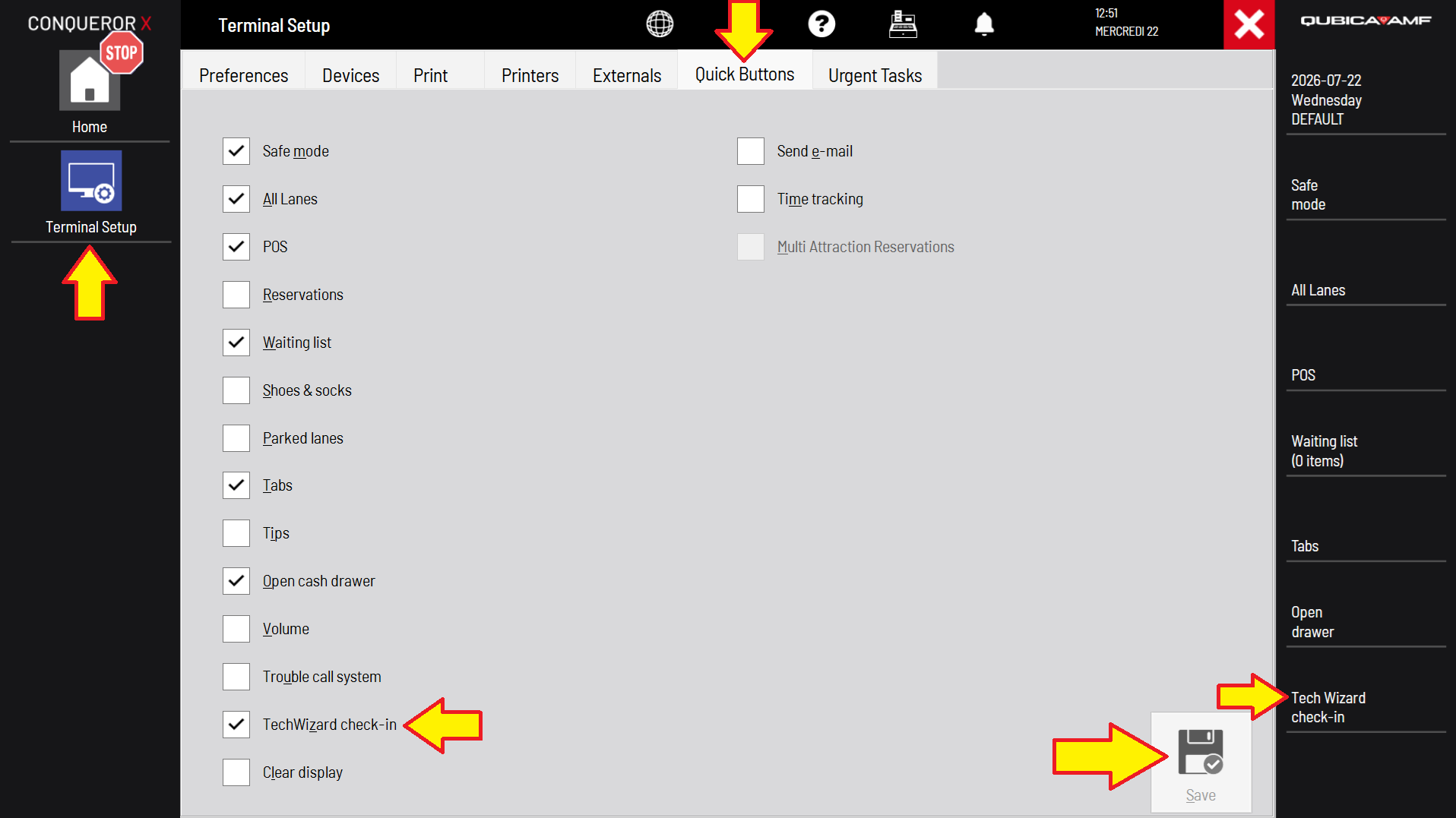
- Go to Setup > General > Terminal Setup > Quick Buttons.
- Select TechWizard check-in.
- Click Save.
- The quick button is now active at the bottom right of Conqueror.
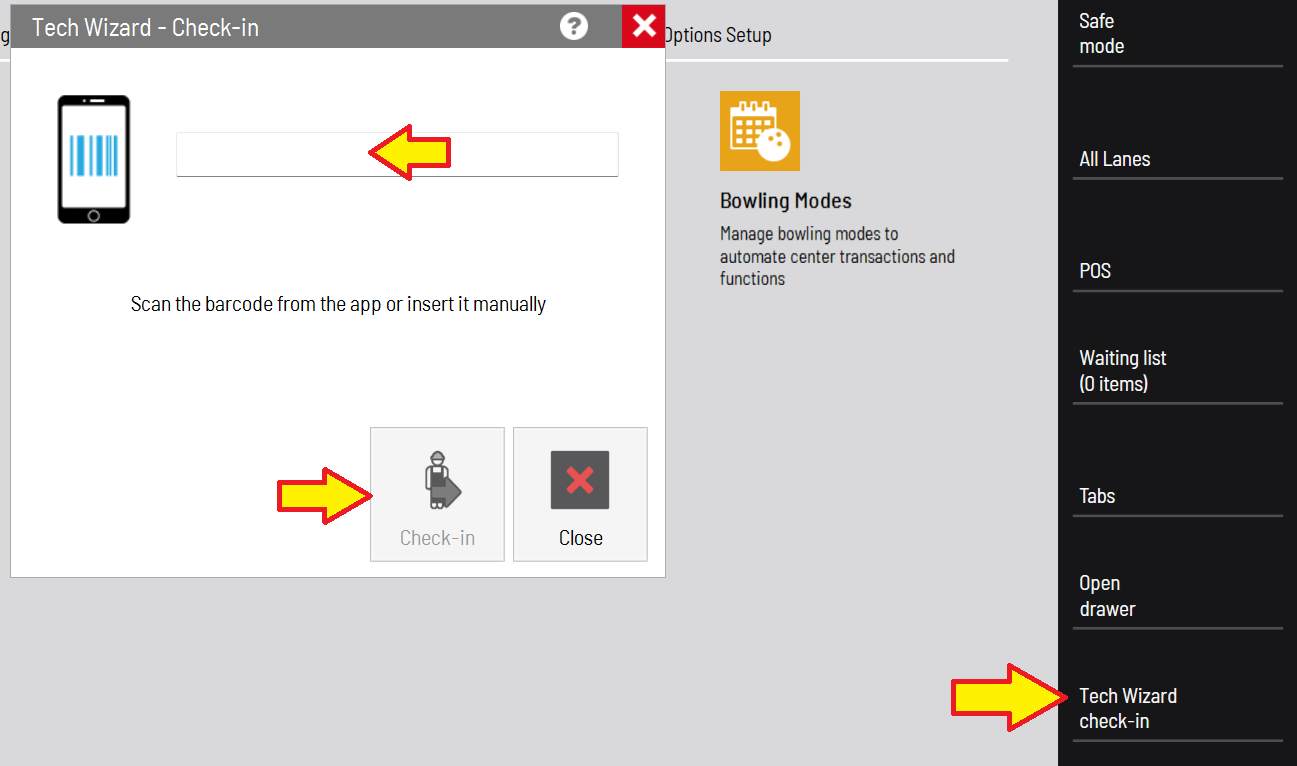
- From there, when your staff click the Tech Wizard check-in button in Conqueror, it asks to enter the pin number that is seen on the user's phone. Enter this number and click Check-in.
Was this article helpful?
That’s Great!
Thank you for your feedback
Sorry! We couldn't be helpful
Thank you for your feedback
Feedback sent
We appreciate your effort and will try to fix the article