The individual who signs the EULA from QubicaAMF is automatically designated as the "Owner / Administrator" of the QPortal. Upon receiving the signed EULA, QubicaAMF will send this individual an email prompting them to log into the QPortal and set up a password. From that point, the Owner / Administrator may choose to add certain employees as users, granting them access to the QPortal or specific QubicaAMF features, either fully or partially. Additionally, to further tailor these accesses and functionalities, Roles can be established and assigned to each employee.
Logging in to the QPortal
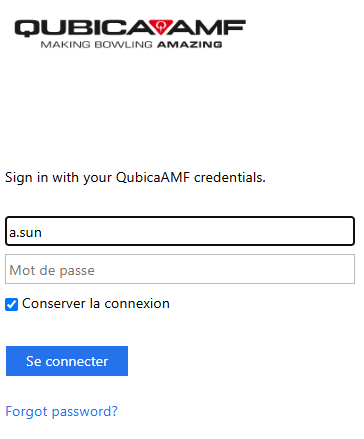
1. Logging in to your account: Go to https://qportal.qubicaamf.com and log in to your account. Most of the time, your username is the first letter of your first name, dot, last name (e.g. a.sun). You might have to create a password (if 1st time you are logging in) or reset your password if you cannot remember it (Forgot password?).
Adding a Role
2. Roles & Privileges: Once you are logged in to your QPortal account, go to the last section at the bottom of the page (Management & Configuration) and click the tile labelled Roles & Privileges.

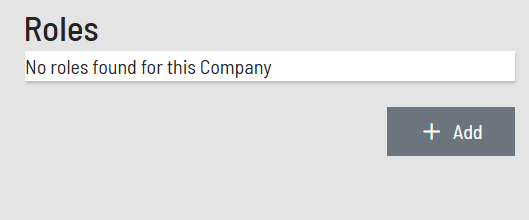
3. Adding a role: No role has been defined yet, so you need to add a Role by clicking the Add button.
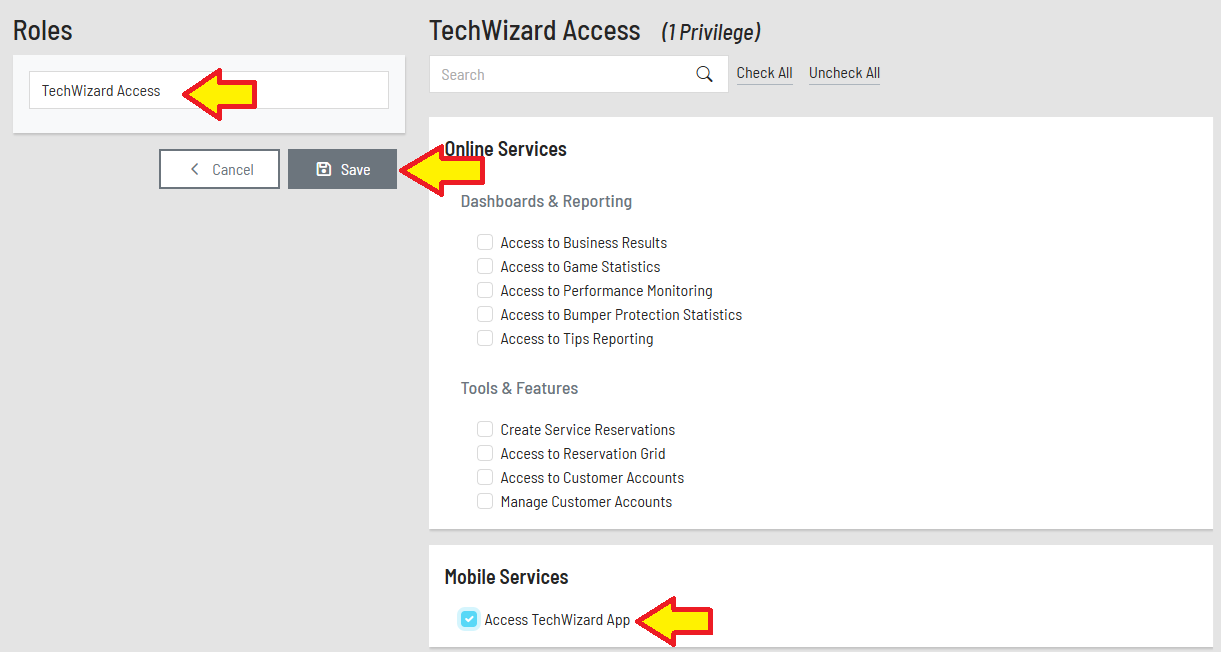
4. Customizing the Role: The following is an example of a Role assigned to the staff who exclusively will need to use the TechWizard app on their phone/tablet to take care of the EDGE String pinsetters. Other roles can be created depending on the staff categories there are at your centre (upper management, managers, IT, advertisement and social media, etc.).
- Enter the name of the Role. It can be as simple as "TechWizard Access".
- From the list of privileges on the right, select Access TechWizard App under Mobile Services.
- Click Save.
And now, you see this one Role.

5. Going back to the main page: Click the name of your centre "Planet Bowl" at the top left.

Adding a User
6. Users: Go to the last section at the bottom of the page (Management & Configuration) and click the tile labelled Users.
7. Adding a user: There, as the owner and the one who signed the EULA, you see yourself. You have been added automatically.
- Click the Add User button.
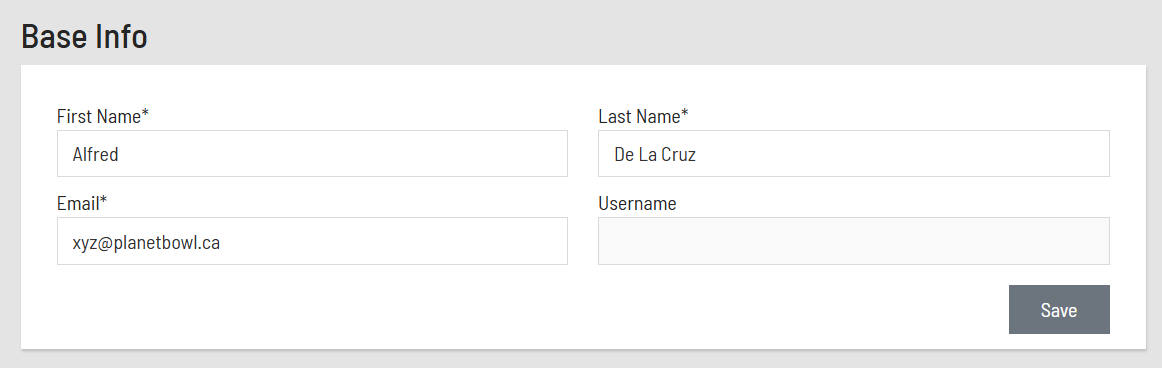
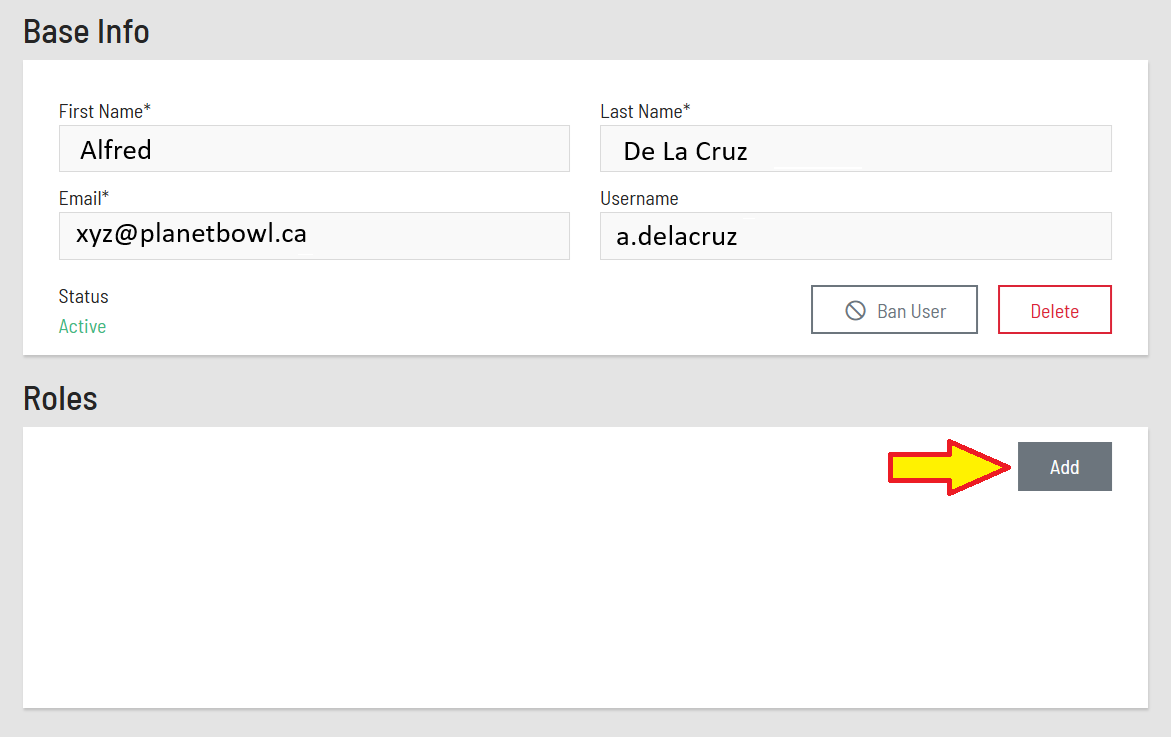
- Enter the first name (Alfred), last name (De La Cruz) and email address of this person and click Save. This will send an invitation to this person to log in to the QPortal and set up a password. This person will also get his username.
- From there, you need to assign a Role to this user. Click the Add button.
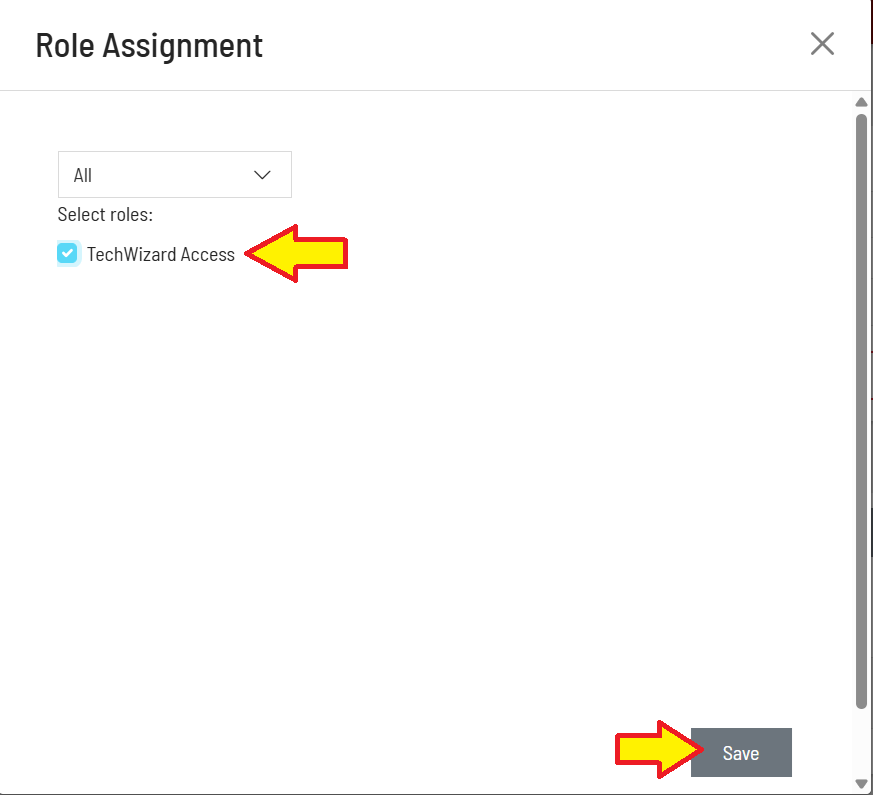
- Select the TechWizard Access role on the left and click Save.
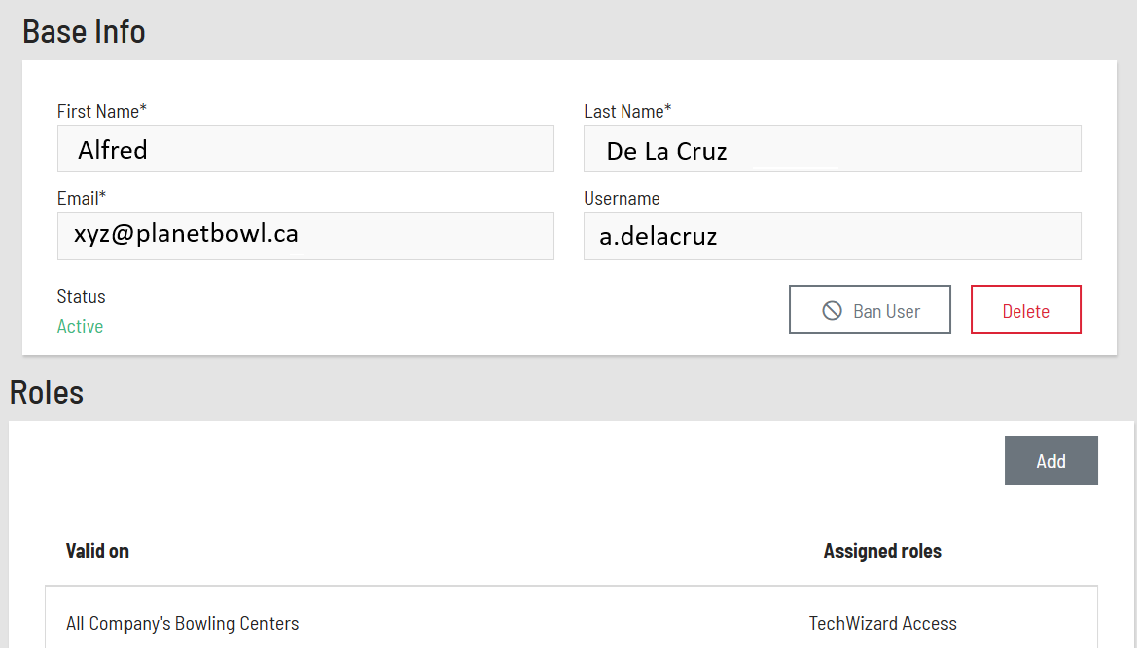
- From there, you will see the Role "TechWizard Access" assigned to this user.
Was this article helpful?
That’s Great!
Thank you for your feedback
Sorry! We couldn't be helpful
Thank you for your feedback
Feedback sent
We appreciate your effort and will try to fix the article