All Lanes Window - What you see
You see a red pair of lanes with this: Boot Error 199.
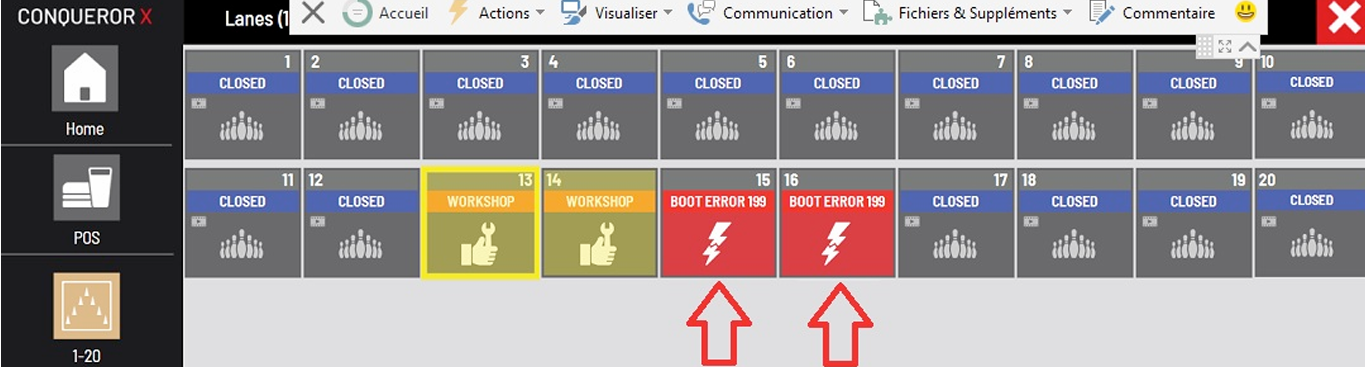
Meaning
The SuperTouch consoles are detected by the system, however, they can't start up properly or enter Run Mode.
Upper Monitors at the Lanes - What you see
You can read this: Test Lcd_R Preboot Err #199.
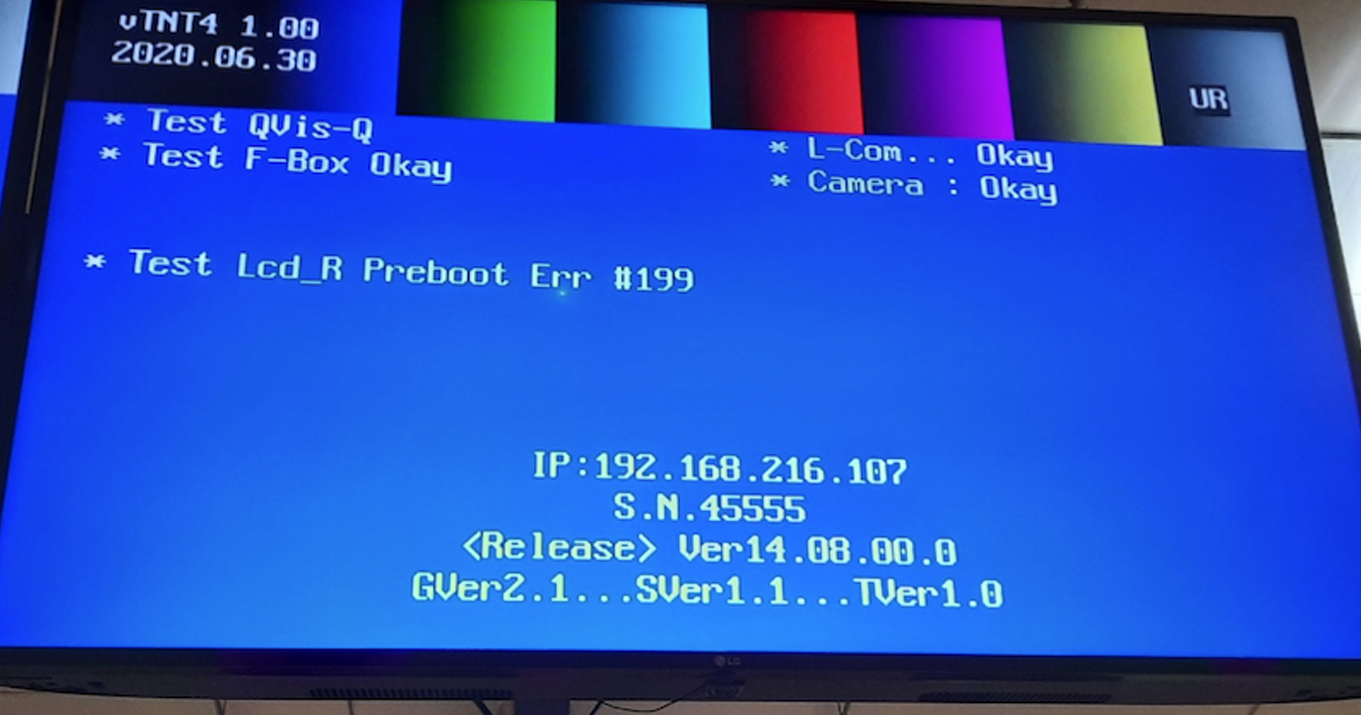
This message tells you that the problem is with the SuperTouch console on the right lane (Lcd_R... R for right... droite). That's why this SuperTouch console is completely black. If the problem was related to the SuperTouch console on the left lane, the letter R would be replaced by the letter L: Test Lcd_L Preboot Err #19.
SuperTouch Consolers - What you see
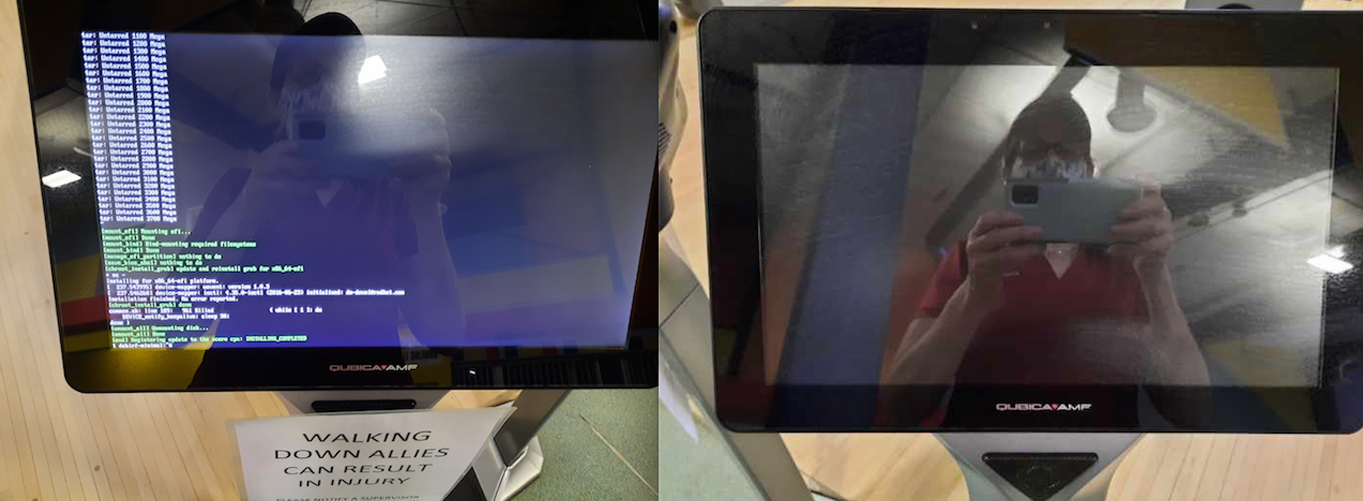
One of the two SuperTouch consoles is showing information in small print and doesn't seem to be starting up properly. The other SuperTouch console is completely black.
What to do
- Troubleshoot the issue and solve it.
or
- Get the lanes working as soon as possible and troubleshoot later. Check out this article to learn more: Console : 2 UP & 1 DOWN.
Troubleshooting this issue
One of the following six procedures should help you find the cause of this Boot Error 199.
1. Reinitialise the pair of lanes in Conqueror
- Setup > Lane Setup > Upload to Lanes.
- Click the blue bar at the bottom of the screen.
- Select the pair of lanes on which there is the Boot Error 199.
- Click OK.
- Click Reinitialise at the bottom right.
- This is a very long procedure. Are you sure you want to proceed with lane reinitialize? Click Yes.
- Do you want to send the programs to the selected lanes? Click Yes.
- Do not exit out from this window. Wait until you see that the programs have been successfully sent.
- Exit this window and go to the lanes window. Wait for the pair of lanes to start.
- After a few minutes, check whether the Boot Error 199 status is still present or if the pair of lanes has returned to normal.
If the situation persists...
2. Unplug the HUB & Reinitialise the pair of lanes in Conqueror
At the back of the lanes, by the pinsetters:
- Unplug the power cable of the HUB.
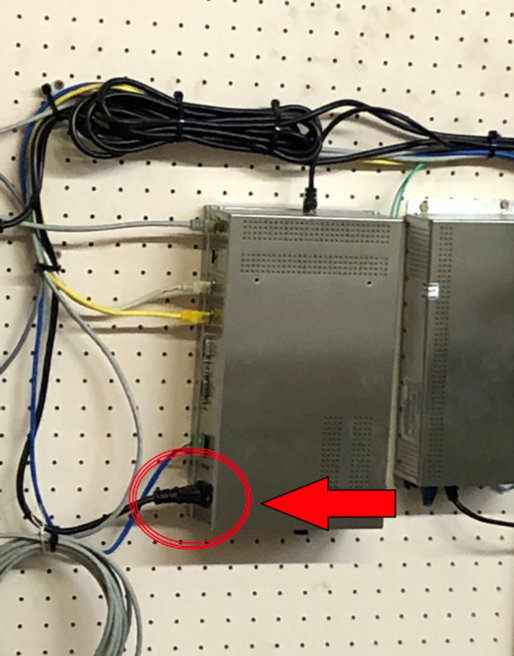
At the front desk computer in Conqueror:
- Setup > Lane Setup > Upload to Lanes.
- Click the blue bar at the bottom of the screen.
- Select the pair of lanes on which there is the Boot Error 199.
- Click OK.
- Click Reinitialise at the bottom right.
- This is a very long procedure. Are you sure you want to proceed with lane reinitialize? Click Yes.
- Do you want to send the programs to the selected lanes? Click Yes.
At the back of the lanes, by the pinsetters:
- Plug the power cable of the HUB back in.
At the front desk computer in Conqueror:
- Do not exit out from this window. Wait until you see that the programs have been successfully sent.
- Exit this window and go to the lanes window. Wait for the pair of lanes to start.
- After a few minutes, check whether the Boot Error 199 status is still present or if the pair of lanes has returned to normal.
If the situation persists...
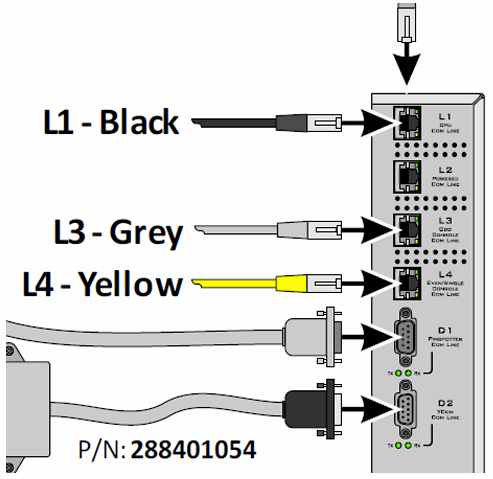
3. Check the cables of the HUB
- Make sure that the yellow cable is properly connected to the L4 port. The yellow cable is connected to the SuperTouch console of the right lane (odd lane).
- Make sure that the yellow cable is properly connected to the L3 port. The grey cable is connected to the SuperTouch console of the left lane (even lane).
- Make sure that these two cables are in good shape, that there is no sign of tear and wear.
If the situation persists...
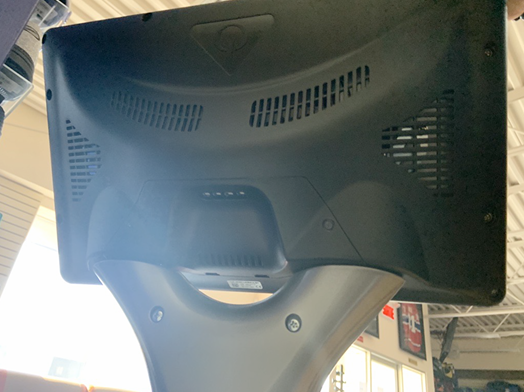
4. Check the cable at the SuperTouch console (the one with the black screen)
- Unscrew the screws at the back of the SuperTouch console.
- Make sure that the yellow or grey cable is connected into the right port.
- Make sure that the yellow or grey cable is in good shape, that there is no sign of tear and wear.
If the situation persists...
5. Swap the HUB
- Remove the HUB from the pair of lanes that shows the Boot Error 199.
- Remove the HUB from the pair of lanes next to the one with the Boor Error 199.
- Swap the two HUBs. Make sure that the grey cable is connected into the L3 port and that the yellow cable is connected into the L4 port.
- Reinitialise the lanes. Follow Procedure #1 above.
- If the Boot Error 199 is transferred to the other pair of lanes, the HUB is the cause of the Boot Error 199. Replace the HUBs to their original pair of lanes and upload the programs to the two pairs of lanes, once again.
- Change the defective HUB with a spare HUB and upload the programs to this pair of lanes.
If you do not have a spare HUB and you need to order one, email us (support@buffabowling.com) or call us (1-800-263-4072).
If the situation persists...
6. Swap the SuperTouch console
- Unplug the power cable of the HUB of the pair of lanes showing the Boot Error 199 and the HUB of the next pair of lanes.
- Swap the "defective" SuperTouch console to the next pair of lanes and vice versa :
- Unscrew the "defective" SuperTouch console from its pedestal and disconnect the cables. Make sure to take a photo of where the cables are connected.
- Repeat with the SuperTouch console of the next pair of lanes.
- Ideally, try to swap the SuperTouch consoles of the same direction (even SuperTouch with even SuperTouch / odd SuperTouch with odd SuperTouch).
- Plug the power cable of the two HUBs back in.
- Reinitialise the two pairs of lanes. Follow Procedure #1 above.
- If the Boot Error 199 is transferred to the other pair of lanes, the SuperTouch console is the cause of the Boot Error 199. Change the defective SuperTouch console by a spare console and reinitialize the pair of lanes. Make sure to follow Procedure #6; it is extremely important to unplug the power cable of the HUB before changing a SuperTouch console.
If you do not have a spare SuperTouch console and you need to order one, email us (support@buffabowling.com) or call us (1-800-263-4072).
Was this article helpful?
That’s Great!
Thank you for your feedback
Sorry! We couldn't be helpful
Thank you for your feedback
Feedback sent
We appreciate your effort and will try to fix the article