Bowling centres use to sell advertisements for local businesses. Advertisements would be on the walls, pinsetter shields and sweeps, masking units, etc.). These days, with BES X Advertising, you can keep your centre clean and run playlists on the upper monitors and SuperTouch consoles. Playlists can contain paid advertising, but also in-house advertising as coming tournaments, promos at the bar and snack bar, pro shop offers, etc.
If you are looking at learning how to create playlists, please watch this video first. If you are just looking at enabling a playlist, scroll down a bit to read the steps.
0:00 - Introduction
0:19 - Creating and modifying playlists
9:55 - Activating the playlists on the monitors
11:09 - Lane On Advertising (click here to read the article on this specifically)
14:02 - Sets of Lane Options to enable Lane On Advertising (Open Play)
15:18 - Sets of Lane Options to enable Lane On Advertising (Leagues)
18:11 - Conclusion
19:01 - Bonus Footage: How to create your own images in PowerPoint
After your playlists have been created, here is how you can have them run on the upper monitors and SuperTouch consoles:
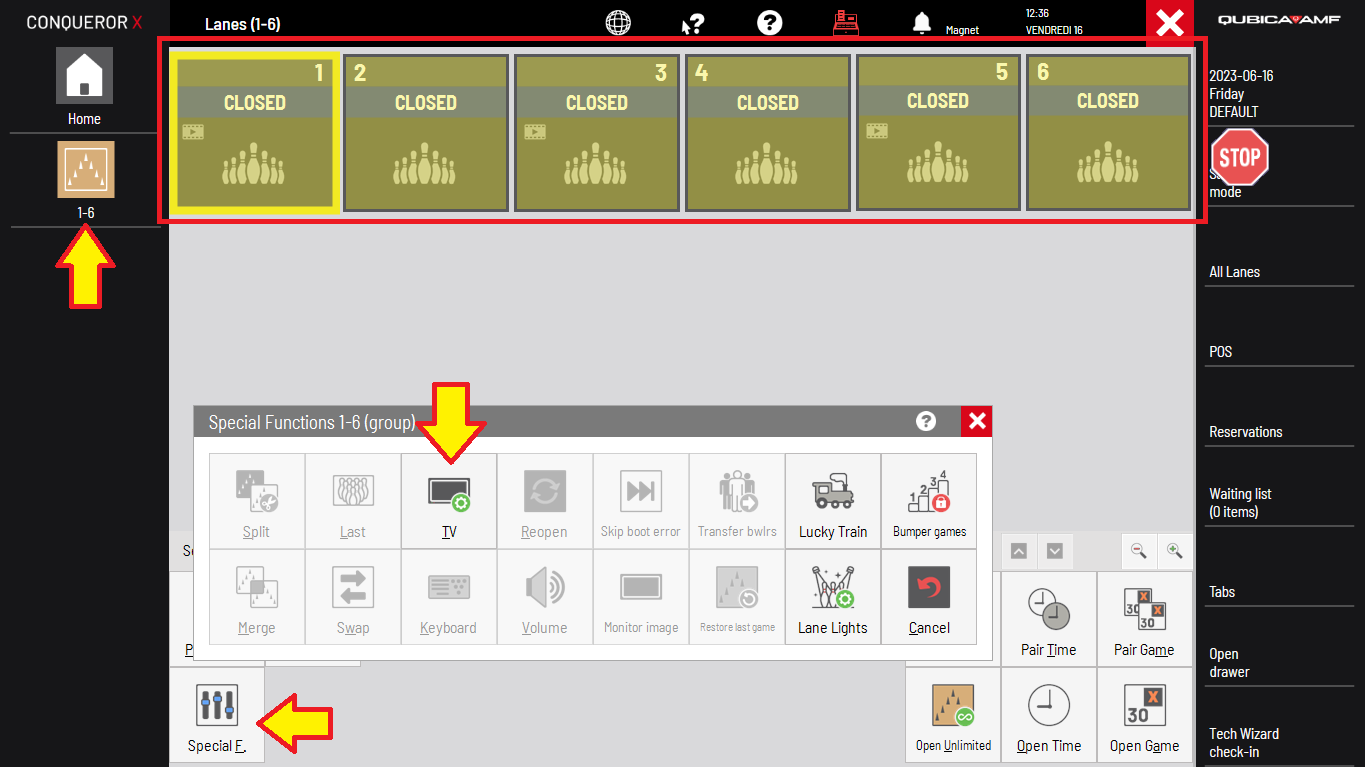
1) Go to the All Lanes window in Conqueror.
2) Select all the lanes on which you want to run a specific playlist. It can be from two lanes to all the lanes.
3) Click Special Functions from the control panel at the bottom left > Click TV.
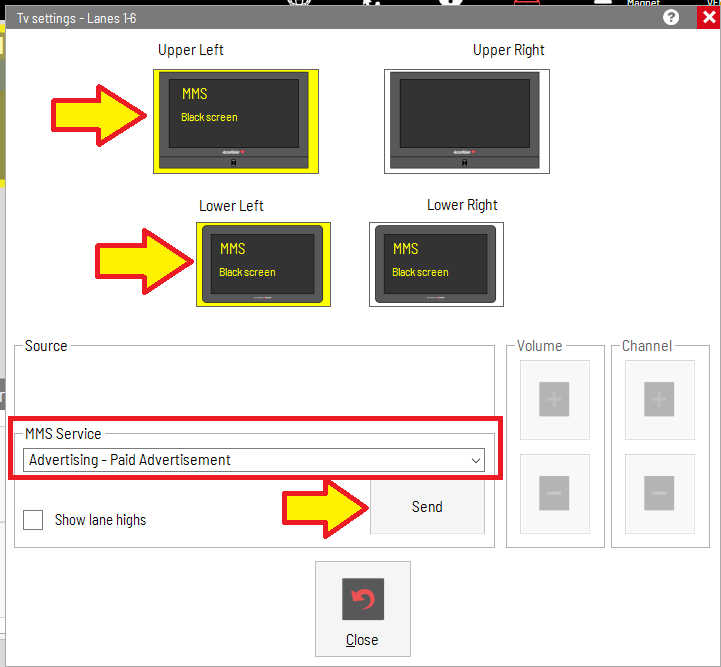
4) In the image below, the upper and lower left monitors were selected, because we want to run a playlist of paid advertisements, as local businesses. Click the drop-down under MMS Service and select the matching playlist.
5) Click Send.
6) In the image below, the upper and lower right monitors were selected, because we want to run a playlist of in-house advertisements, as coming tournaments, promos, offers, etc.. Click the drop-down under MMS Service and select the matching playlist.
7) Click Send.
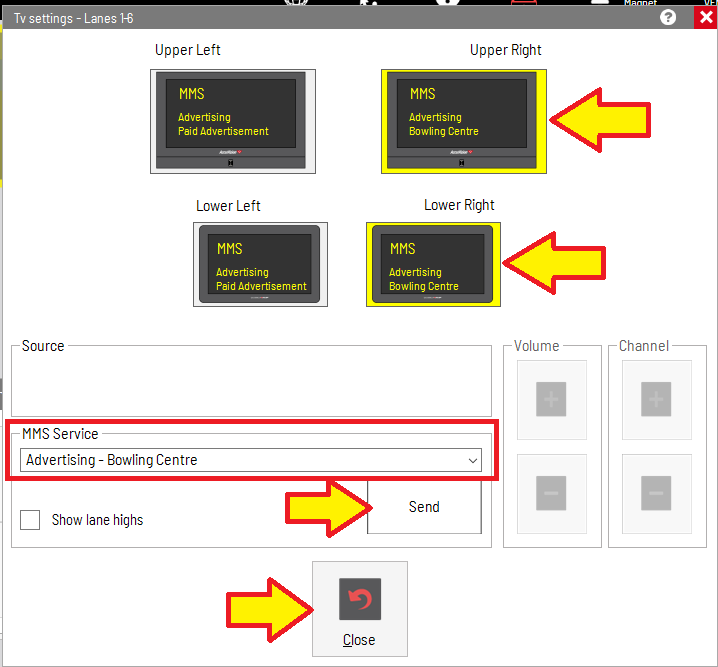
8) Click Close to exit out from the TV Settings window.
Note: One playlist could have been sent to the upper left and right monitors and another could have been sent to the lower left and right monitors. One playlist could have been sent to all four monitors. Four different playlists could have been sent to the four monitors individually.
Was this article helpful?
That’s Great!
Thank you for your feedback
Sorry! We couldn't be helpful
Thank you for your feedback
Feedback sent
We appreciate your effort and will try to fix the article